# Initial Printer Setup

After you unbox your brand new X1 3D printer, you need to go through the initial setup process. Here's how to do it:

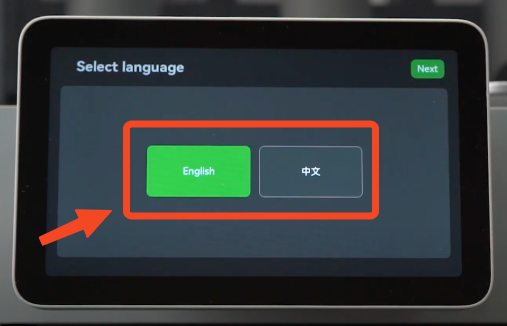
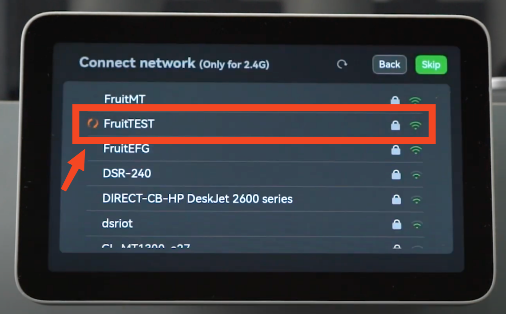
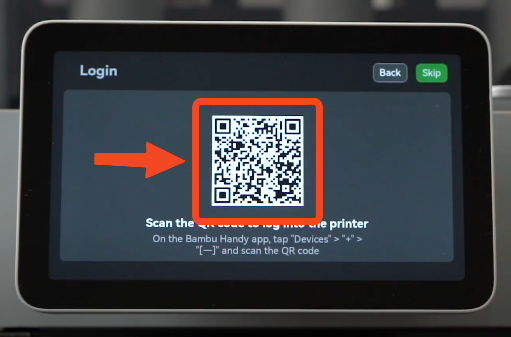
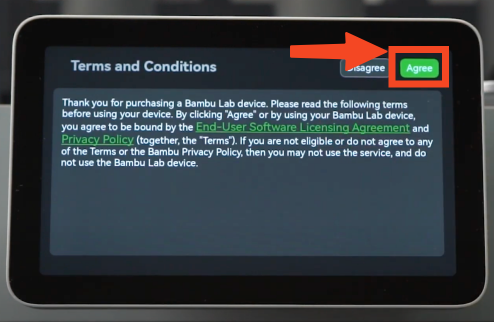
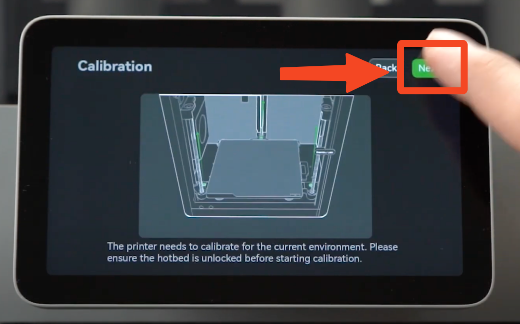
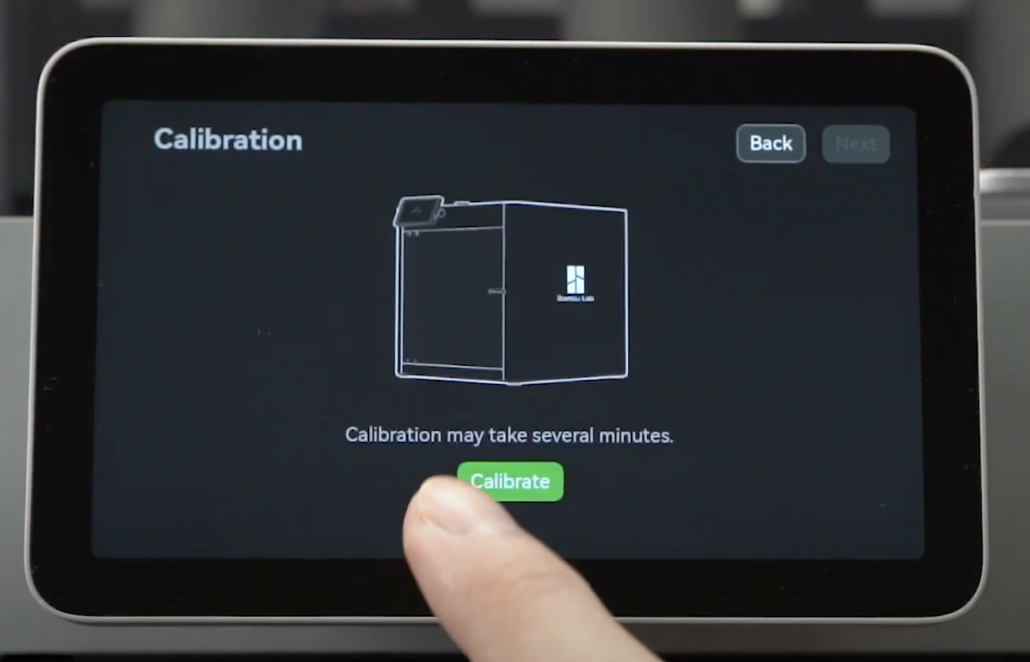
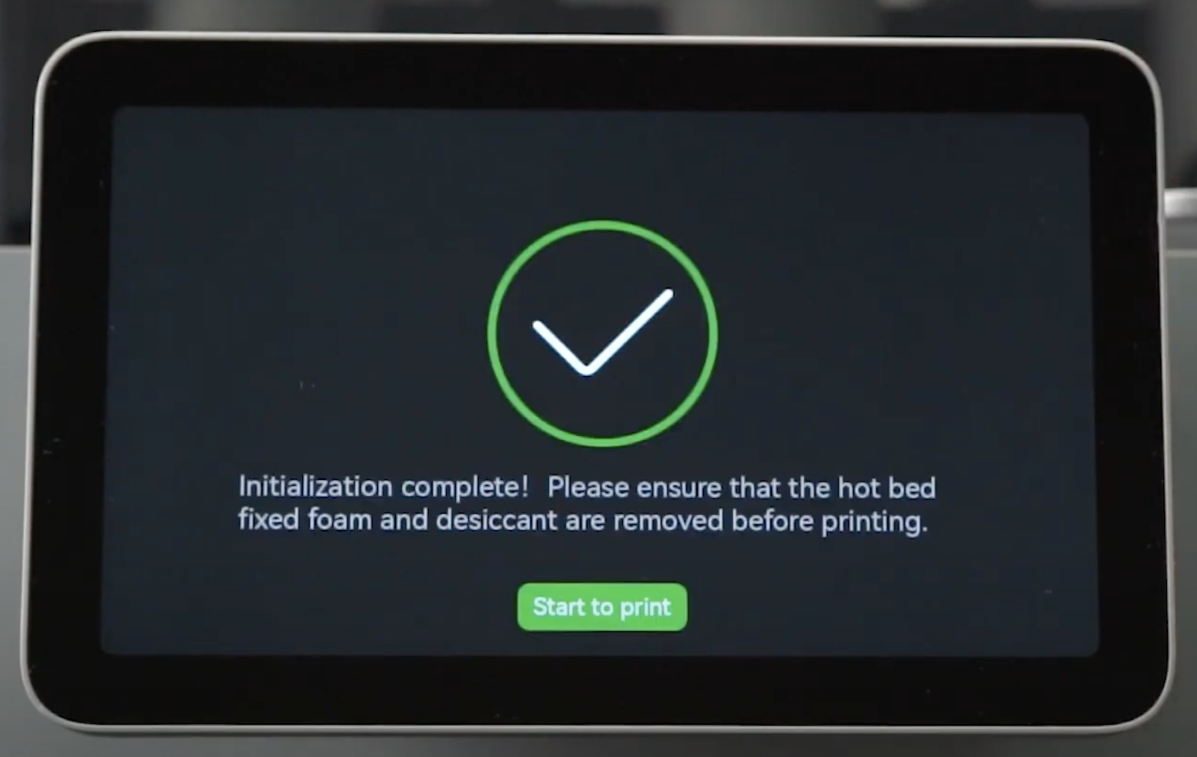
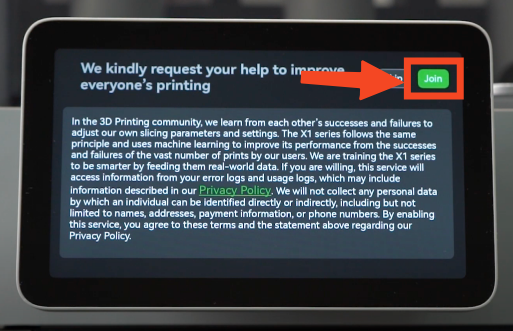
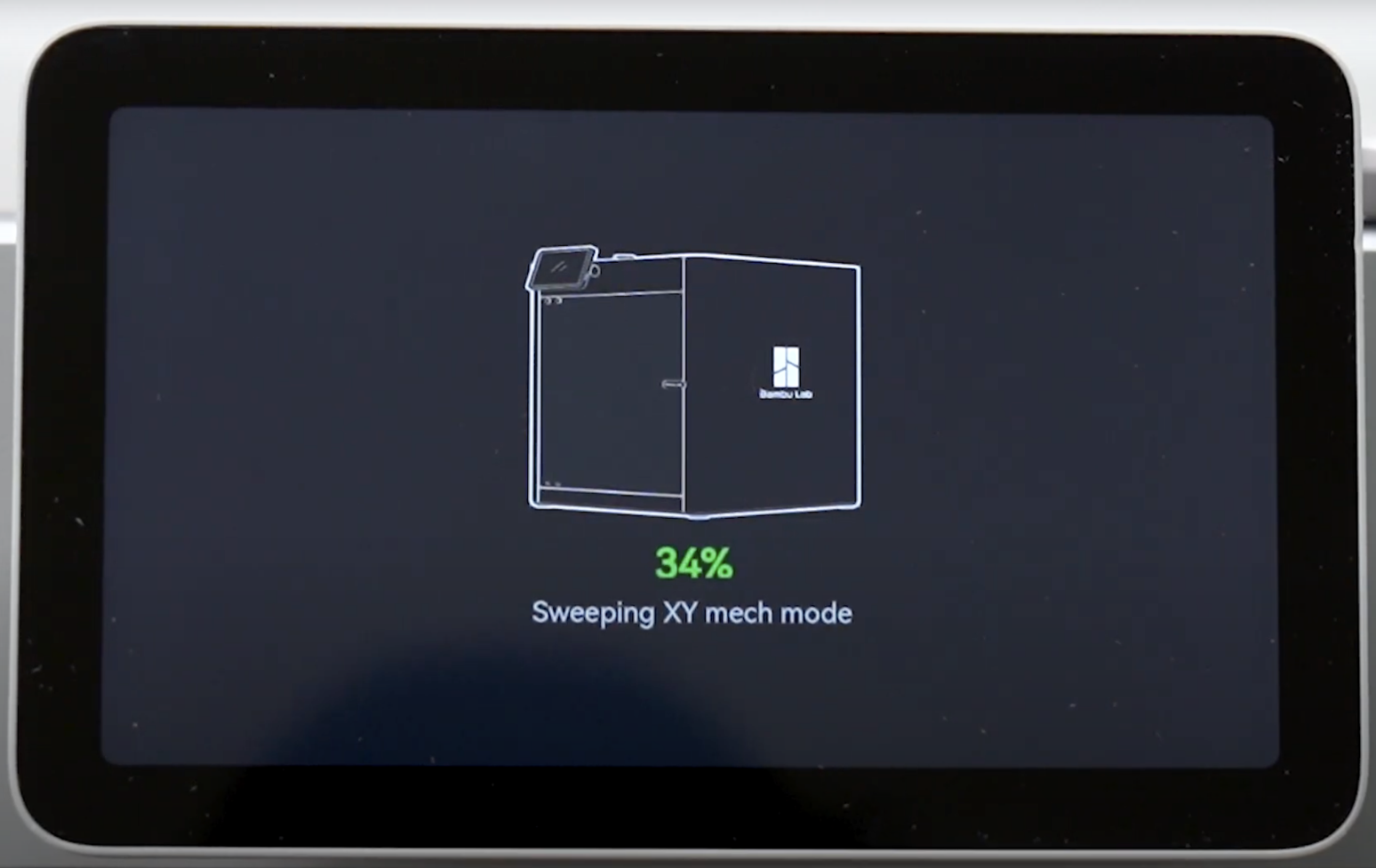
<figure class="media" id="bkmrk-"><div class="video-responsive"></div></figure><table border="1" id="bkmrk-the-first-step-is-to" style="border-collapse: collapse; width: 100%; height: 1220px;"><colgroup><col style="width: 50%;"></col><col style="width: 50%;"></col></colgroup><tbody><tr style="height: 276px;"><td style="height: 276px;">The first step is to select your language,</td><td style="height: 276px;"><figure class="image">![](https://wiki.bambulab.com/x1/manual/select_the_language.png)</figure></td></tr><tr style="height: 267px;"><td style="height: 267px;">Select your Wi-Fi network. Enter your credentials and after connecting, tap the Next button</td><td style="height: 267px;"><figure class="image">![](https://wiki.bambulab.com/x1/manual/select_your_wi-fi_network.png)</figure></td></tr><tr style="height: 282px;"><td style="height: 282px;">Scan the QR Code in Bambu Handy</td><td style="height: 282px;"><figure class="image">![](https://wiki.bambulab.com/x1/manual/scan_the_qr_code_to_bind_the_printer.png)</figure></td></tr><tr style="height: 279px;"><td style="height: 279px;">Accept the Terms and Conditions</td><td style="height: 279px;"><figure class="image">![](https://wiki.bambulab.com/x1/manual/agree_with_the_terms_and_conditions.png)</figure></td></tr><tr style="height: 29px;"><td style="height: 29px;">You can choose to join the improvement program, which can help to improve the printer. Tap Join if you want to help, or Skip if you don't want to join the program. </td><td style="height: 29px;"><figure class="image">![](https://wiki.bambulab.com/x1/manual/join_the_feedback_program.png)</figure></td></tr><tr style="height: 29px;"><td style="height: 29px;">Start the calibration process. Tap Next to get started.</td><td style="height: 29px;"><figure class="image">![](https://wiki.bambulab.com/x1/manual/start_the_calibration_process.png)</figure></td></tr><tr style="height: 29px;"><td style="height: 29px;">Tap the Calibrate button to start the automated calibration procedure</td><td style="height: 29px;"><figure class="image image_resized">![](https://wiki.bambulab.com/x1/manual/calibrate_the_printer.png)</figure></td></tr><tr style="height: 29px;"><td style="height: 29px;">The printer will start the calibration procedure. You might hear loud vibration noises. They are normal. </td><td style="height: 29px;"><figure class="image image_resized">![](https://wiki.bambulab.com/x1/manual/the_printer_is_calibrating.png)</figure></td></tr><tr><td>When the calibration is complete, the following message will appear on the screen</td><td><figure class="image image_resized">![](https://wiki.bambulab.com/x1/manual/initialization_complete.png)</figure></td></tr></tbody></table>
.