
Using the LCD
This guide has been written using An X1 Carbon running firmware version 01.09.00.00 (20250429). If this firmware does not match yours
Home Screen
There are two types of home screen that are shown, depending on if vour printer is currently idle or creating a print. Below is an example of an idle print screen On the left side of the homescreen is the menu that includes options for:
- Homepage
- Controls
- Filaments
- Settings
- HMS Messages
- Print Files (from internal storage or SD-Card)
- Nozzle Temperature
- AMS Controls
- Wireless and
- Print Assistant
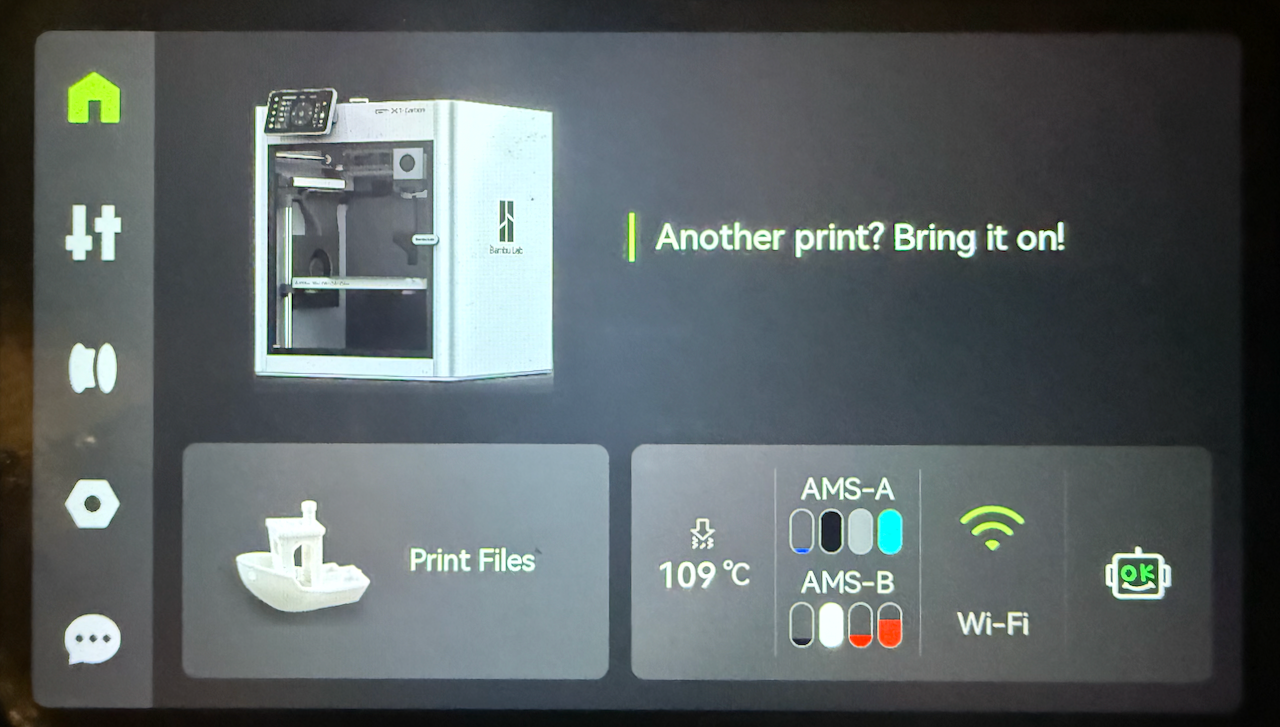
The second home screen that is shown is when what the printer shows whilst the a print is occurring, these options are:
- Homepage
- Controls
- Filaments
- Settings
- HMS Messages
- An thumbnail image and name of the currently printing file
- If a recording (timelapse) and/or video recording is occuring
- display of the current temperatures set on the device
- The percentage of the print completed along with the number of completed layers and total layers, along with the current time remaining
- Current printer status description
- Object Skip
- Object Pause
- Stop Print and
- Print Assistant

Controls
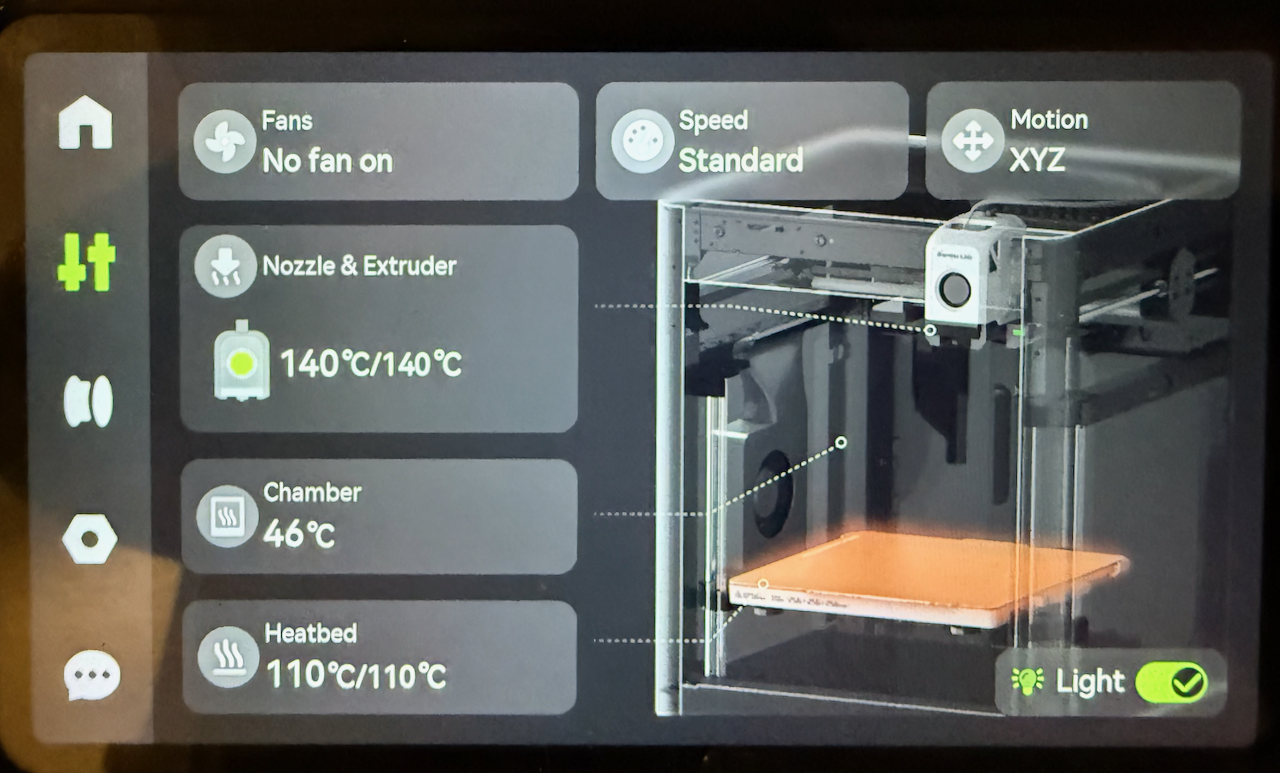
From the controls manual you will be presented with a pictorial of the status of all subsystems that can be controlled, these include
- Fans
- Nozzle and Extruder
- Heatbed
- Print Speed
- Motion
- Light
Pressing on any of these items excluding the Chamber (as on the X1C is not heated) and you will be presented with a screen where you can input your changes
Fans
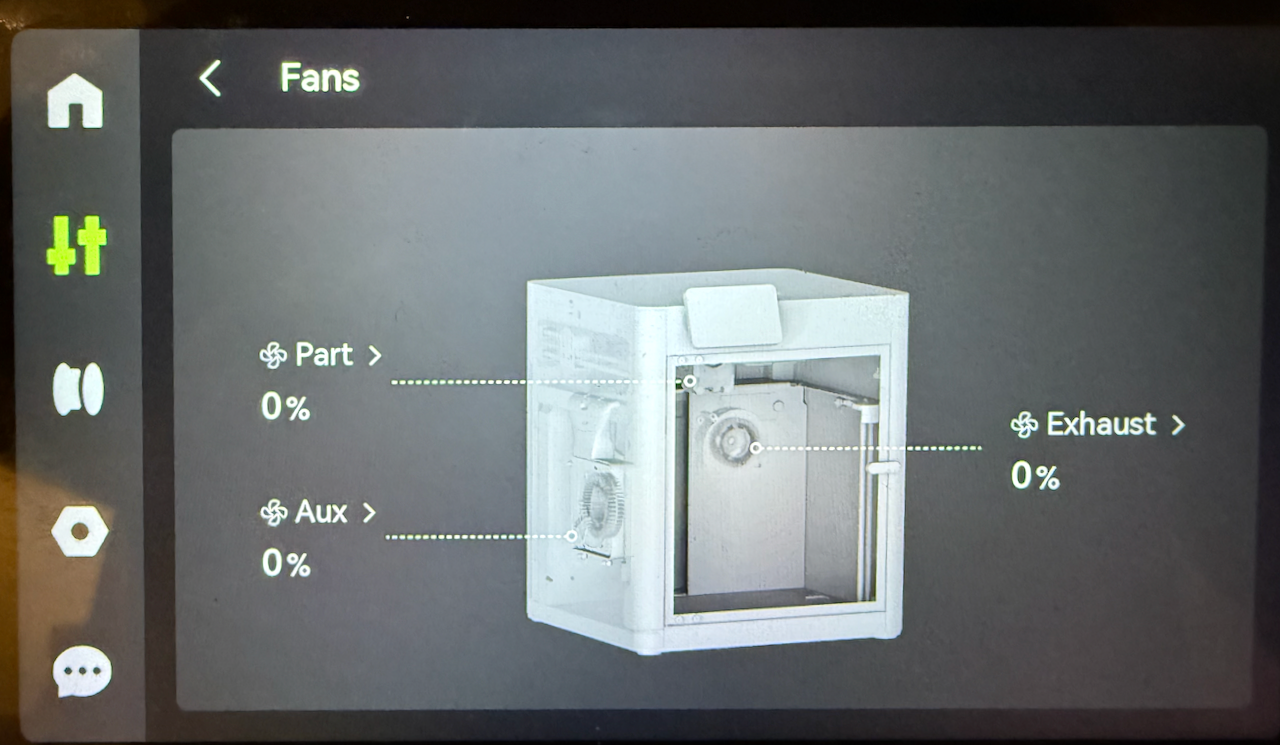
To enter the Fans Screen, press on the Fans button. This will then present you with what fans are turned on and at what percentage of speed. You can control the following fans
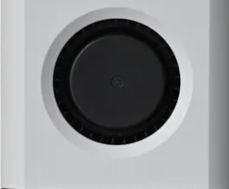
- Part Fan (on the toolhead)
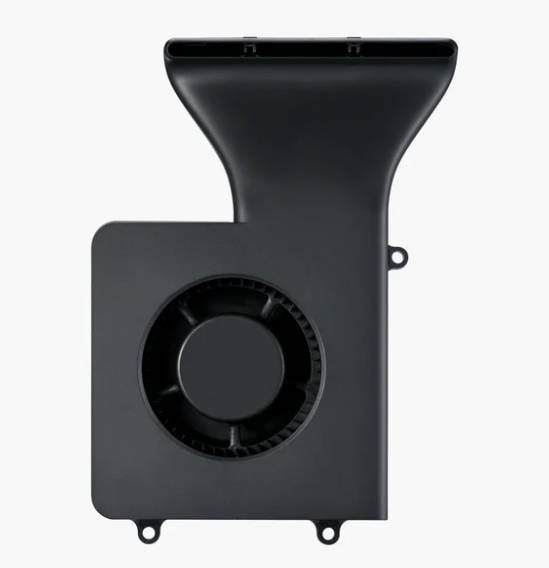
- Auxiliary Fan (on the lefthand side) and
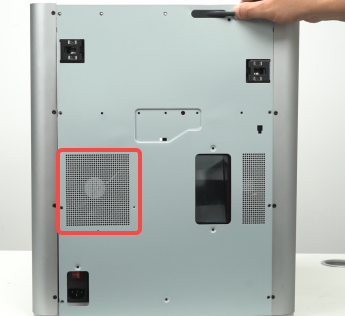
- Exhaust Fan (Back Panel)
| Part cooling fan | Auxiliary part cooling fan | Chamber temperature regulator fan |
 |
 |
 |
To open the settings for any of the Fans, press on the name of the fan, where you will then be presented with the controls.
Below is the Auxillary Part Cooling Fan controls. Currently the fan is switched off as the slider is grey and the fan speed is at 10%. If the requirement is to run the fan at 100% you can simply press the slider. Otherwise you can hit the + button to select the required speed

Below you can see the Auxillary Part Cooling Fan Settings, Currently the fan is switched on as the slider is green with a tick and the speed is set to 10%

Nozzle and Extruder
The Nozzle and Extruder controls allows you to set the
- Nozzle temperature
- Nozzle type and
- Extrude and retract the filament.
To move the filament in the extruder use the up and down arrows. The up arrow will retract the filament (move it away from the hotend, whilst the down arrow will extract (push it through the hotend)
Care is required when retracting the filament, as if you retract too far ( > 18mm) you risk clogging the extruder as you pull hot molten plastic into the extruder.

To set the extruder temperature click on the button under nozzle temperature. This will then bring up the screen where you can enter the desired temperature.

To set the Nozzle Type press the pencil icon next to the nozzle size and type currently installed

Heatbed
To set the heatbed temperature click on the heatbed button. You will then be prompted to input the temperature.

The maximum temperature that the heatbed can achieve is based on the mains voltage that the machine is using. 120VAC can achieve 120°C whilst 240VAC can achieve 110°C
Speed
This option will allow you to print the module with the motion settings increased, the speeds settings are below
- Ludicrous:166% of normal print speed and acceleration
- Sport:124% of normal print speed and acceleration
- Standard:normal print speed and acceleration
- Silent:50% of normal print speed and acceleration

This setting does not take into account max volumetric rate and does not confirm that the extrusion rates that are being used will be supported by the filament. It is recommended to instead tune your filament profiles to allow you to gain extra speed with confidence that the print will be a success.
Motion XYZ

XY Motion control.
The XY control allows moving the X and Y axis if required, as well as homing the axis. Below is a table that supplies what each of the 9 segments on the graphic do
|
|
1 - Move X towards the origin (10 Steps) |
| 2- Move X towards the origin (1 Step) | |
| 3 - Move X away from the origin (10 Steps) | |
| 4- Move X away from the origin (1 Step) | |
| 5 - Move Y away from the origin (10 Steps) | |
| 6- Move Y away from the origin (1 Steps) | |
| 7- Move Y towards the origin (10 Steps) | |
| 8- Move Y towards the origin (1 Step) | |
|
9- Home the printer so it knows where the origin exists |

Before manually homing or moving the XY axis ensure that nothing remains on the build plate that may foul the toolhead when homing
Z-Axis Motion control
The Z-Axes motion controls allow for moving the the headbed up and down in steps of 10 or 1

Filaments
The filament's allow you to assign, edit and control filaments that are loaded into your printer either via the AMS if fitted or an external spool as well as showing if a filament has been loaded into the extruder. If an AMS is fitted this is where you can
- Observe the filaments loaded including colour and filament type.
- Re-read a RFID Tag
- Unload a filament
- Load a filament
- If a filament is loaded which spool is loaded into the extruder
- If a non Bambu Labs filament has been loaded set all details of the filament
- If a Bambu Labs filament is loaded set the K factor (pressure advance)
- Spools that have a backup spool set for auto refill
- The humidity sensor of each AMS and
- The amount of filament left on the roll.

Editing Filaments
There are a few reasons that you mey need to edit a filament, including:
- Using an external spool
- Using a non Bambu Labs spool in the AMS
- Setting a spool to load a pre-saved K Factor on a spool set on the AMS
If a print job is currently in progress you will not be able to edit the filaments until such time as it has finished.
AMS
Non-Bambu Labs filament.

Bambu Labs filament.
If you have a bambu labs filamaent with a RFID tag, you will not be able to edit the filaments settings such as colour as this is all done through the QR Code. The only option that you will have is to set the Dynamic Pressure Control

External Spool
You do not have to have an external spool currently loaded into the extruder to be able to set the external spool settings, it can be done before or after loading the spool.
To edit the external spool details you need to select the external spool from the list of sources, If you have an AMS this will be to the right of you AMS units on the filament spools and can be identified by the label "Ext". To select it press on the external spool and you will be presented with a screen showing and empty spool.

Once the edit dialogue is shown select the:
- Filament Manufacturer
- Filamant Type
- Filament Colour and
- Dynamic Pressure Control profile if created
Once you are happy with the selection, press the confirm button.44
Below you can see that the Spool has now changed and shows that red PLA is now shown as the active filament is installed.

Loading and Unloading Filaments
AMS
You can manually load or filament from the AMS if you have the requirement to do so, however, normally this is not required as the correct filament will be loaded and unloaded by the printer.
Loading from AMS
You will only be able to load a filament into the extruder, if it is currently empty
To load an ams filament you need to select the slot that you wish to load and click on the spool picture, this will then highlight the spool by moving it above the others. Select the load button and it will start the process to load the filament into the extruder
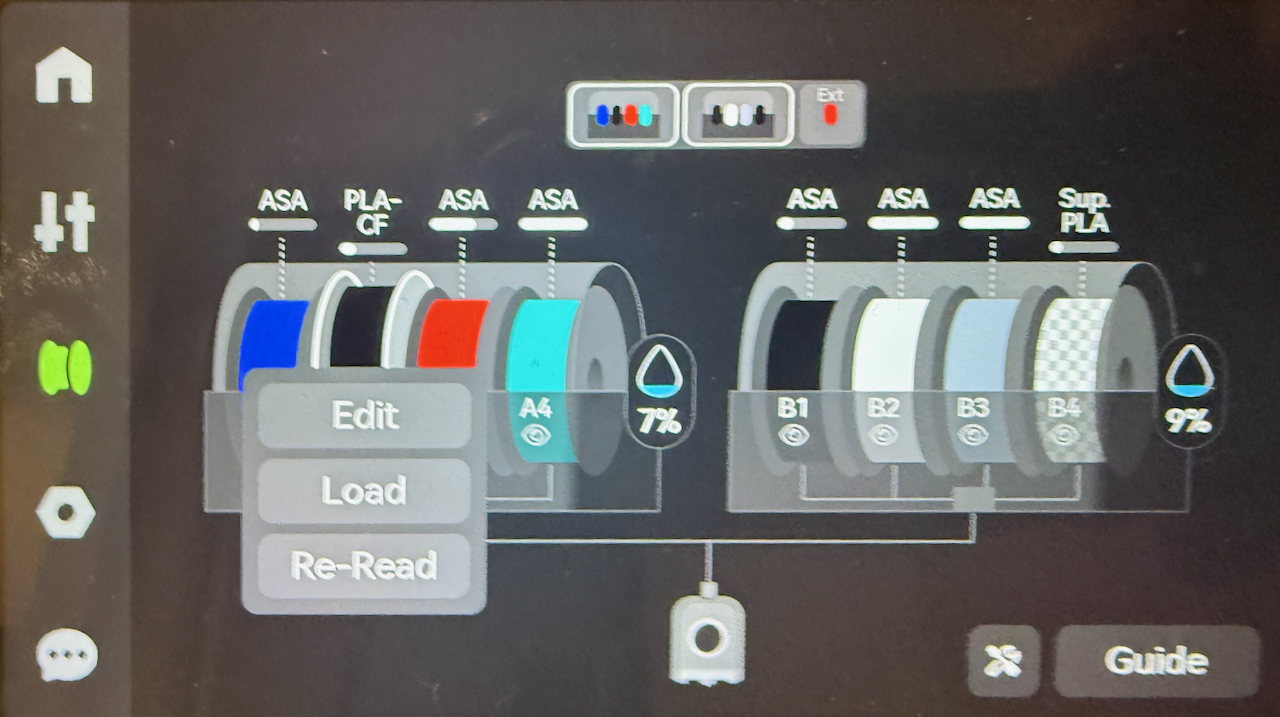
Once this has been completed the loaded filament will be shown by the path from spool to filament being shown. In the example below the Red ASA from B4 has been loaded and is ready for printing to commence.

Unloading from the AMS
You can manually load or filament from the AMS if you have the requirement to do so, however, normally this is not required as the correct filament will be loaded and unloaded by the printer.
To unload a filament that is stored on the AMS you will need to click on the filament to bring up the context menu and select unload,
Select the filament spool that you wish to unload, press on the spool and select unload from the context menu.
External Spool
There are many reasons why you may decide to use an external spool, including
- The filament that you are using may not support being loaded from the AMS, for example TPU 85A
- You are doing a quick print job with a filament and you do not want to load it into the AMS
- You are printing from an external dry box
- or an engineering filament that is required to be printed from a blast dryer to avoid moisture
Using a external spool requires additional manual steps that the AMS will perform for you
If you find that you have the requirement to commonly need to to print from an external filament source it is recommended to purchase the 4-in-1 PTFE adapter. I highly recommend it's purchase as it will save you from forgetting to re-install your AMS connection on the rear of the printer, hitting print on your next print and coming back hours later to a paused print job. All because you forgot to plug the AMS back into the printer..
Loading from an External Spool
The process to load an external spool requires the following steps
If not using the 4-in-1 PFTE adapter remove the AMS from the printer input PFTE tube
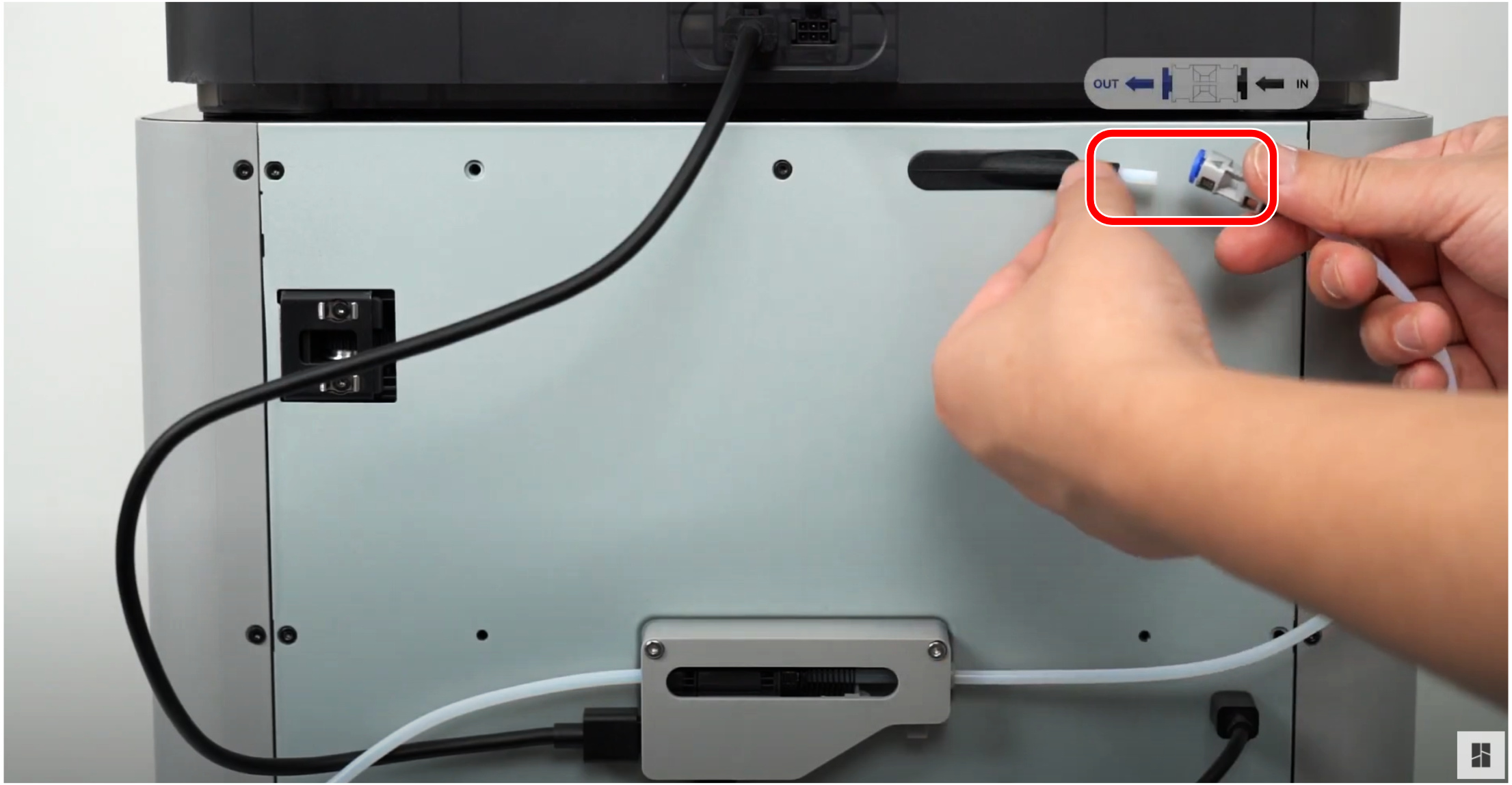
Select the external spool as the source of the filament
Press on the spool and then select the option to load the filament, even though the filament is not currently loaded it will still give you the option to unload it, ensure that you select load.
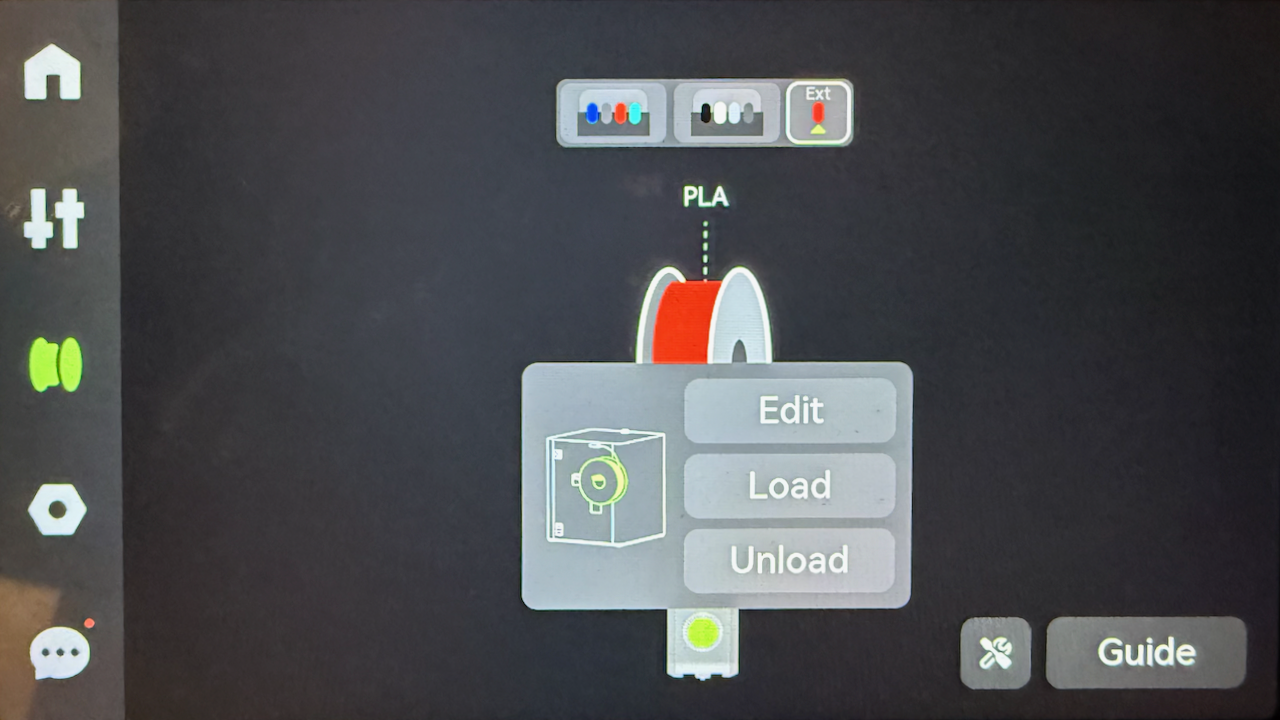
From here the printer will:
- Heat the extruder
- Perform a cut motion
- Move the toolhead to the poop chute and
- Prompt you to manually load the filament
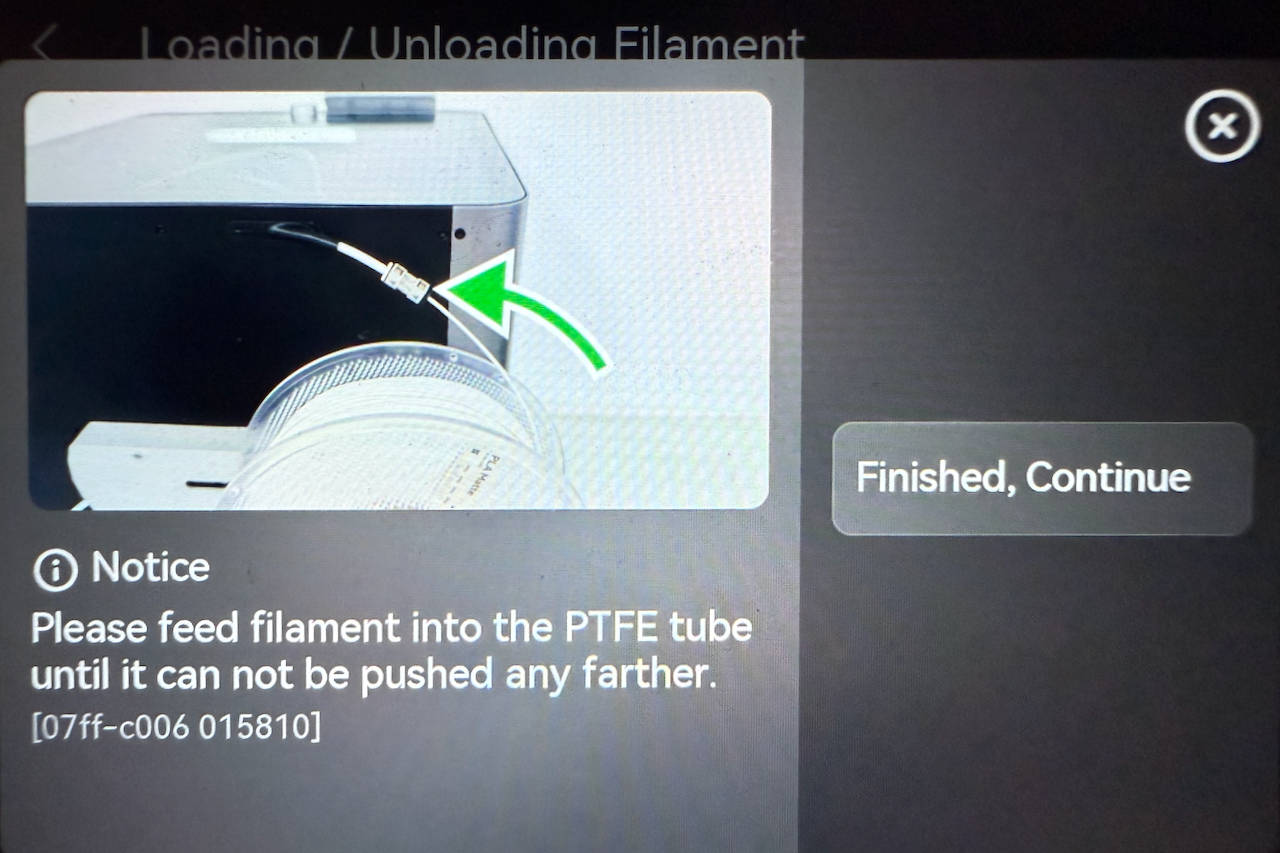
Carefully feed the filament into the input PFTE tube making sure that you do not push too hard and deform the filament. Once the filament has been pushed past the filament sensor you will be prompted to see if the filament has been extruded into the shoot. Keep pressing the "Not Extruded Yet; Retry" , whilst gently applying pressure to guide it into the extruder. Once the filament is moving on its own keep pressing the option until you see filament being extruded from the hot-end.
Once this has occurred, press "Filament Extruded; Continue"

The printer will then purge out the old filament and prime the nozzle. Once this is completed the printer will then be ready to print from the external spool, and the screen will show the external spool connected to the toolhead.
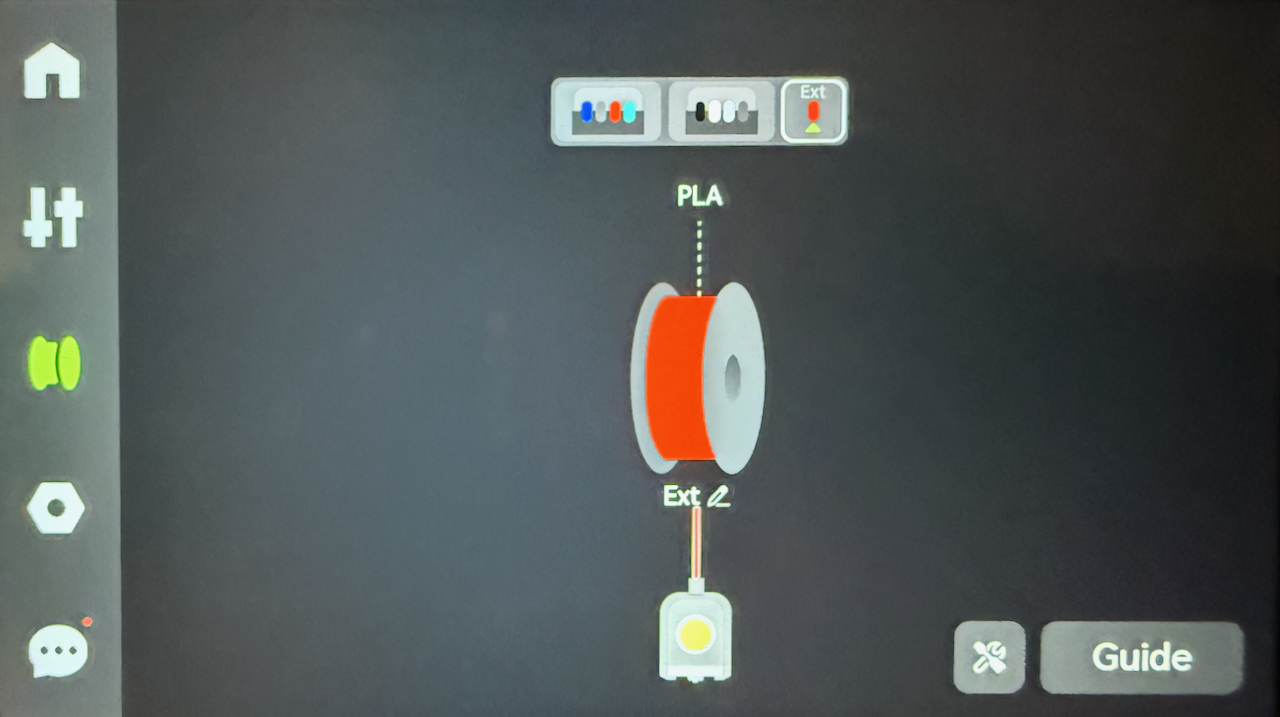
Refilling the External Spool
If you are using an external spool and the spool runs out, you need to load a new spool. This is the same process as the load procedure.
Unloading the External Spool
Once you have unloaded the external spool, the printer will not reset the spool details unless you follow the spool reset steps
To unload the filament, select the external spool if not displayed, and confirm that it currently showing as loaded into the extruder
Press on the spool to bring up the filament, and bring up the context menu and select unload.
From here the printer will:
- Heat the extruder
- Perform a cut motion
- Move the toolhead to the poop chute and
- Prompt you to manually remove the filament
Once the the filament is removed the LCD will not still show the filament programmed unless the spool setting are reset
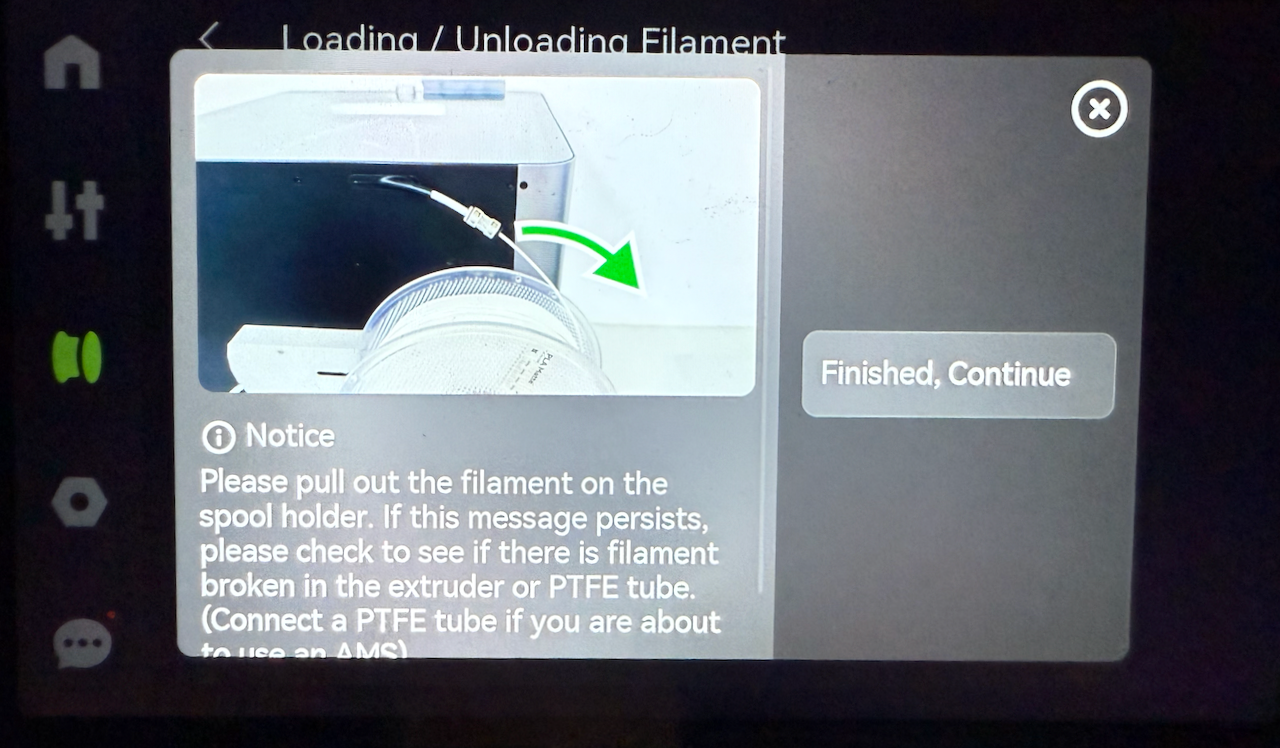
Once the filament out of the filament sensor the printer will update the display to show the extruder is unloaded
If you are using the 4-in-1 PFTE adapter make sure that you roll the filament back enough that the filament leaves the adapter. Otherwise it will foul the path that a filament from the AMS takes, as once it leaves the filament sensor the printer no longer can detect it
If you have removed the AMS from the back of the printer do not forget to reconnect it before performing your next print.
Auto Refill
One of the major benefits of using an AMS other than multi-colour printing, is Auto Refill. This allows that if an exact match of a filament (manufacturer, filament type, and colour) to be used if a matching filament spool becomes empty. To confirm that Auto Refill is enabled for a filament.
To bring up the auto refill screen click on the tools button at the bottom right and the select the Auto Refill button.
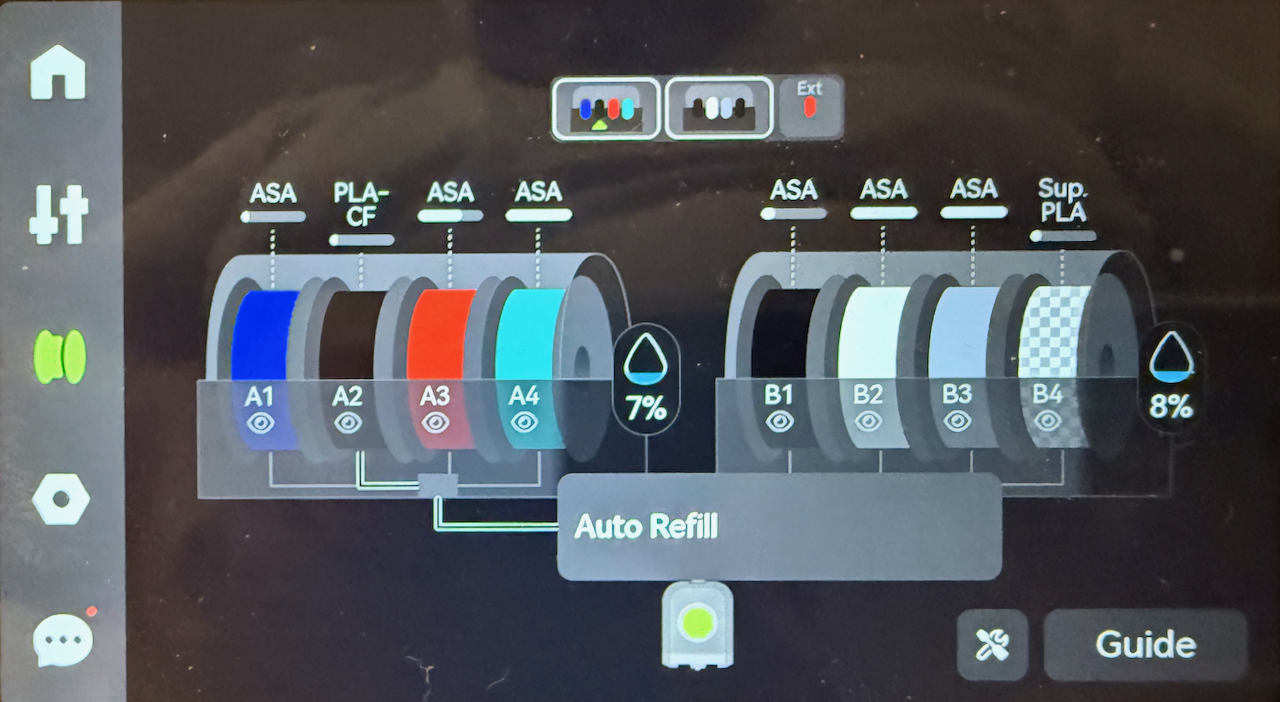
If a filament is matched the screen will show the spools (using slot numbers) to that will be used to refill each other.
When printing with Auto Refill enabled, ensure that you source your print from the spool with less filament available, the slicer and printer otherwise will print with the lowest slot number, even if this is the full spool.

if the printer does not have matching spools then the screen will show that the feature is enabled enable it
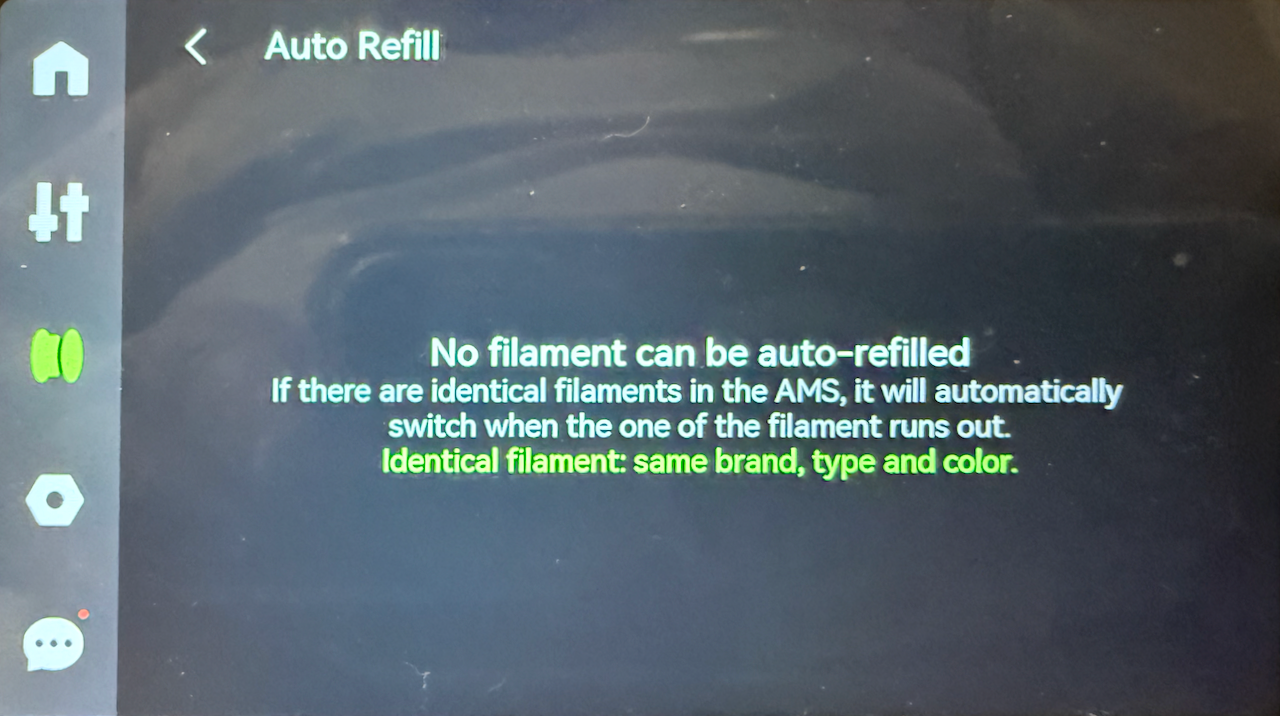
Or that it is disabled
Settings
Some, but not all printer settings are able to be configured directly from the printer, but more advanced settings (like the above Auto Refill, can only be configured from either Bambu Studio or Bambu Handy. Others such as binding the printer to your Bambu Labs account you need to use an Applicaton and the Printer.

The setting that can be configured from the settings screen are:
- The Account the printer is bound to
- Printer Calibration and
- Printer Settings
It also provides short cuts to frequently used setting:
- Wifi Settings
- SD Card Settings and
- Firmware
Account Settings
The account settings can be accessed by clicking on the Account button. Normally the account button will have the avatar of the currently logged in account.
The initial binding of the account is done during the printer setup.;
Logging out
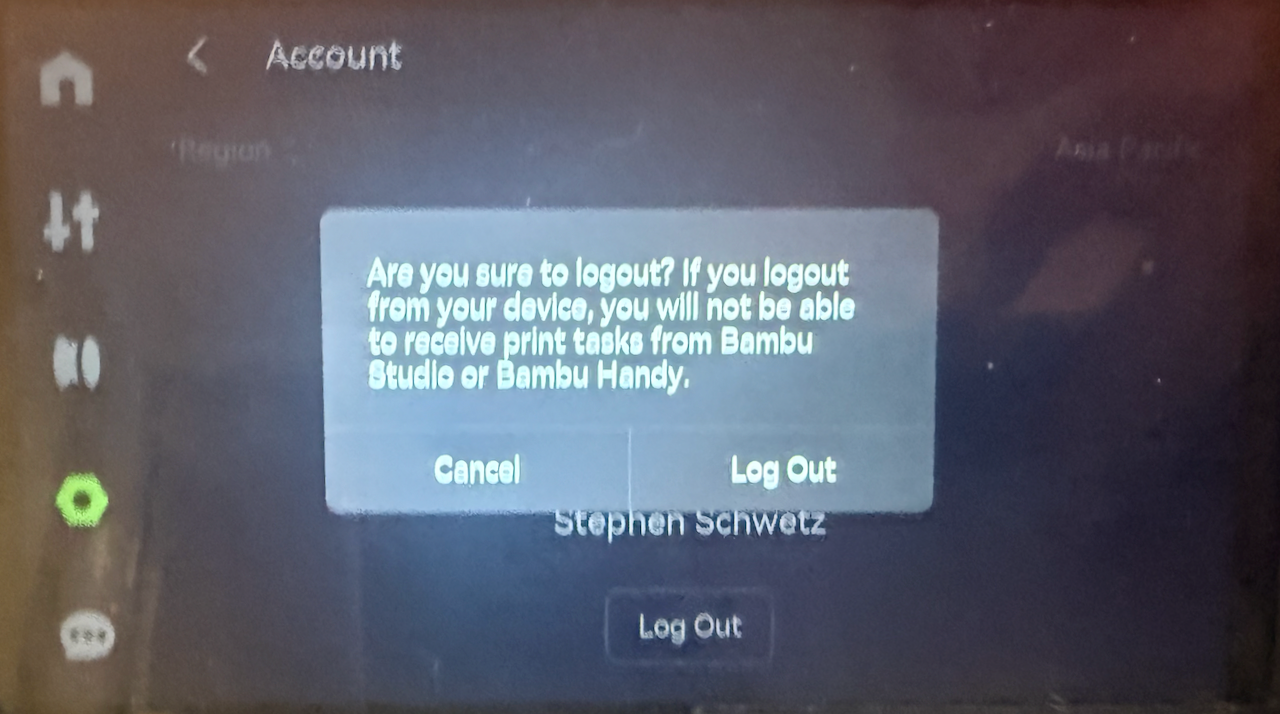
If you want to rebind the printer to a different account you will need to log out of the current account bound to the printer. This will remove the printer from the bambu account and will need to be rebound to regain access. From here you will also be able to change the Region that your printer is in if you need to move region.
To log out of the bound account click on the log out button

The printer will then prompt you to confirm that you want to log out, Click "Log Out" to confirm
Binding Printer (Logging In)
If the printer is not bound to an account all online functions from the printer are not enabled until the printer is rebound. To bind the printer involves two steps on the printer screen:
- Select Region
- Scan QR Code with Bambu Handy
The first step is to select the correct region that your printer is installed in. Once you have selected the correct region, press confirm

The next screen that is presented will be the QR Code that is required to bind the printer to your Bambu Labs Account.
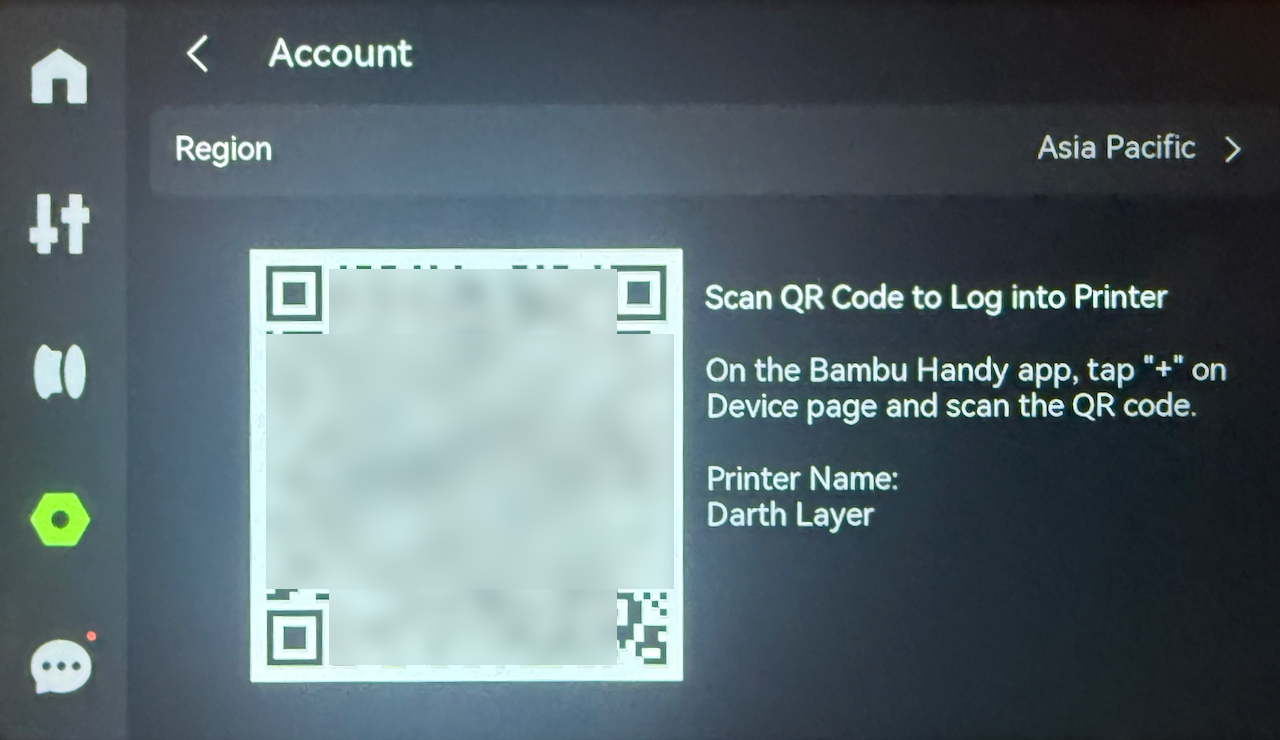
For information on the rebinding process is covered in Binding the Printer
Toolbox
- Device Self-test
- Dry Filament
- Carbon Rods Clearance
- Lead Screws Lubrication

Tools
Device Self-test
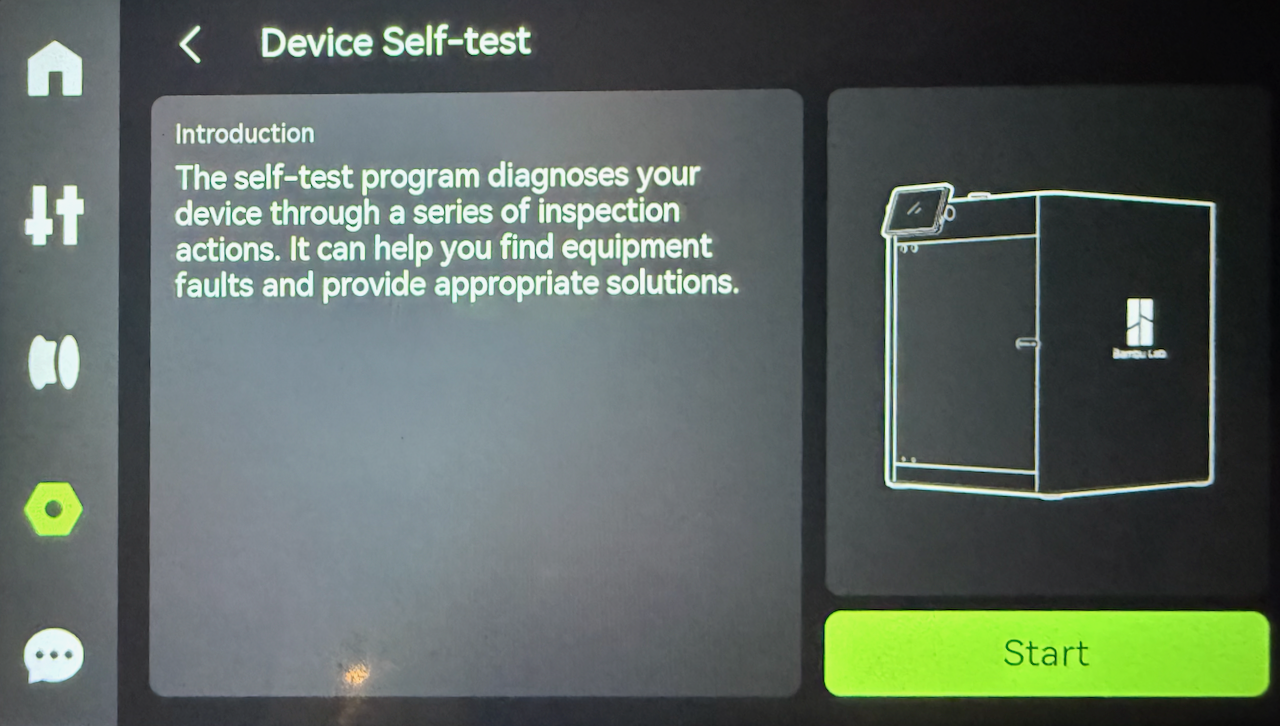
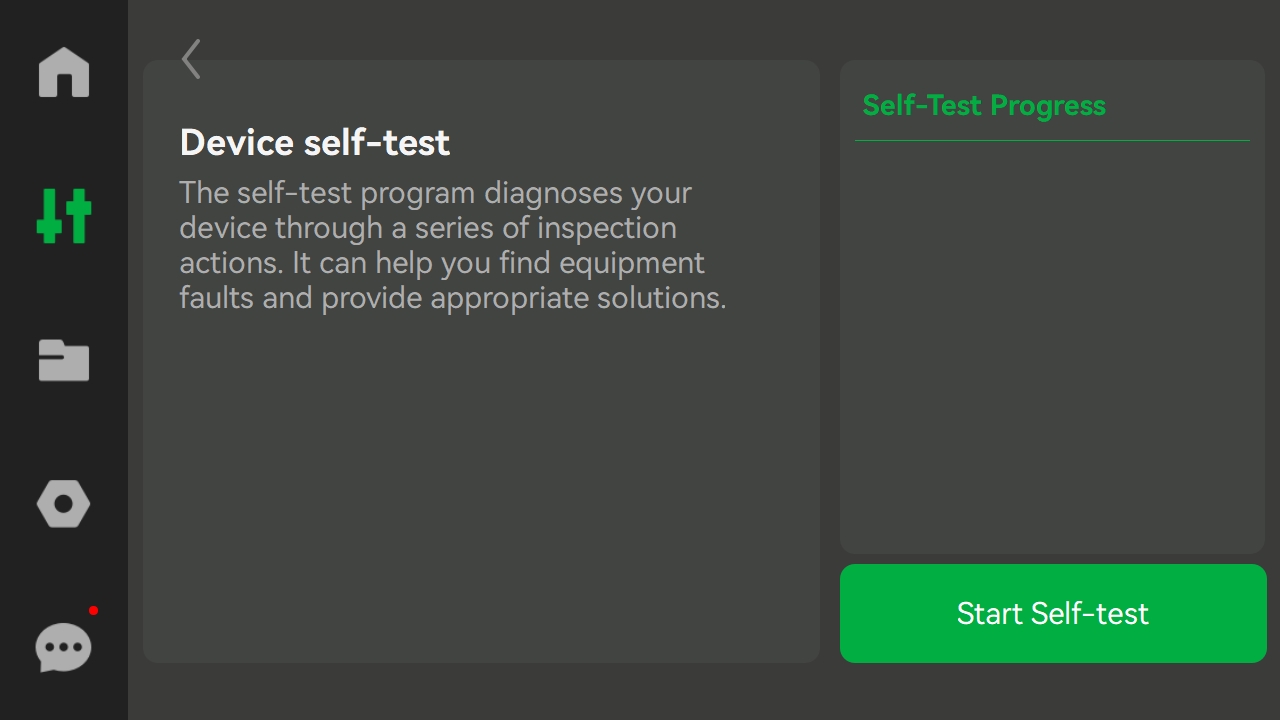
If you are having issues with your printer systems, you can use the device self-test to have the printer ensure that all subsystems are functioning correctly. The Self-test tests the
- Hotend
- Heatbed
- Auto bed leveling
- Vibration compensation
To run a self test click on the self-test and then click on the start button, once this test completes you will be presented with the results.
Dry Filament
As the X1C has a heated bed, this can be used to dry filaments if they are too wet to successfully print.

Maintenance
The printer tracks the period between cleans for both carbon rods and the lead screw calibration
Carbon Rods Clearance
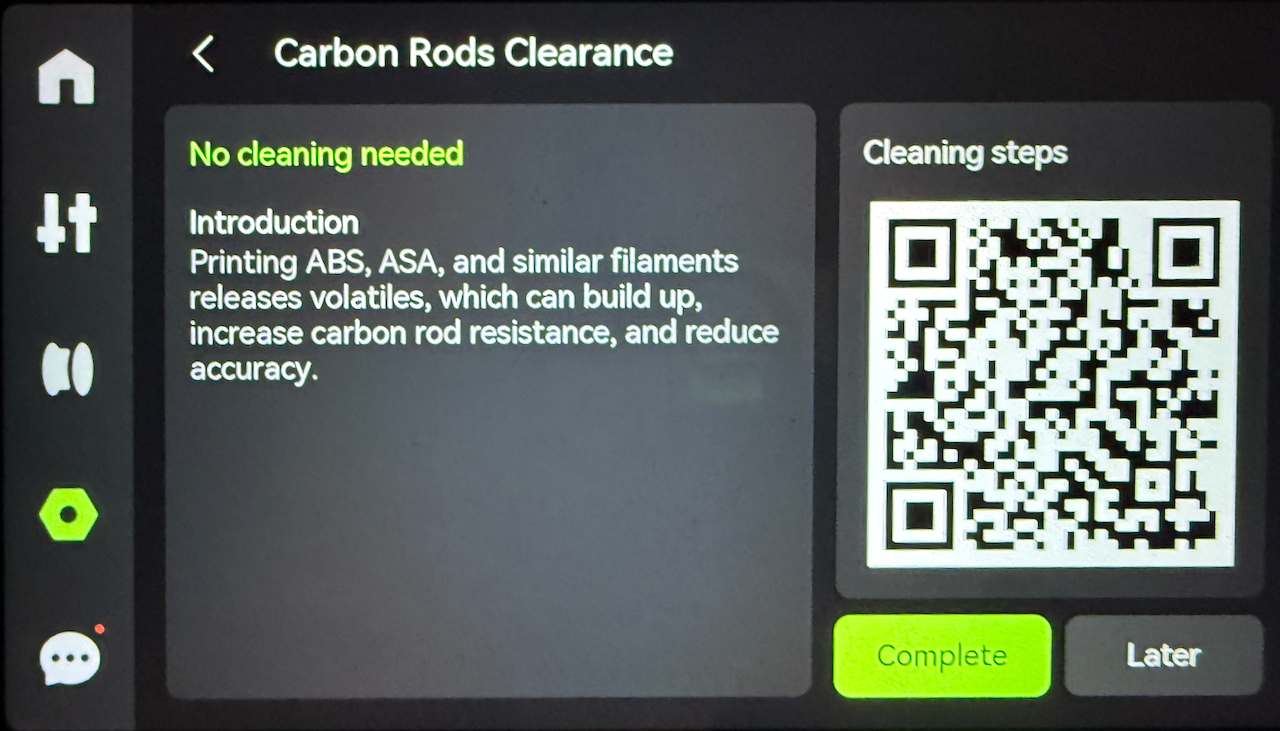
The printer tracks how long it has been since you cleaned the carbon rods. Every time you get a notice to clean the rods, once complete click complete on the screen. to reset the counter.

Lead Screw Lubrication
The printer also tracks the last time that the lead screws have has their grease renewed, ensure once you have lubricated the screws that you reset the counter by clicking complete on this option to reset the counter
Settings
From this screen you will be able to configure the printer and it's attached peripherals including
- Print Options
- AMS Options
- Video Resolution for the chamber camera
- LCD Sleep timout
- Printer Interface Languate
- If the Auxilary Part Cooling Fan is installed
- Device Serial numbers and other system identifiers
- Lan Only mode
- Export a support bundle to the SD-Card and
- Perform a factory reset
I am not going to do a deep dive into the settings in this chapter, that wiill be in a later chapter

Print options
This option allows you to control the subsystems that are used by the printer whilst it is processing a print job, Including
- AI Print options
- Build Plate Detection
- First Layer Inspection
- Auto Recovery from Step Loss
- Open Door Detection
- Store sent files on External storage
Print Calibration
Selecting this item allows you to run specific calibration routines which is required when you have replaced parts, performed printer maintenance, or if you notice print quality deteriorating.
You can chose to calibrate
- Bed leveling
- Moror noise calibration
- Micro Lidar calibration and
- Resonance frequency identification
AMS Settings
Functions of the AMS system can be controlled through this interface:
- Read filament on insertion
- Read filament on startup
- Remaining filament estimation
- AMS Auto-Refill
- Arrange AMS Order
-
-
-
Nozzle Temperature:Enter a value to set the nozzle temperature.
-
Heatbed Temperature:Enter a value to set the heatbed temperature.
-
Chamber Temperature:Display the chamber temperature. (X1E can set the chamber temperature actively, please refer to: X1E Chamber Setting Guide)
-
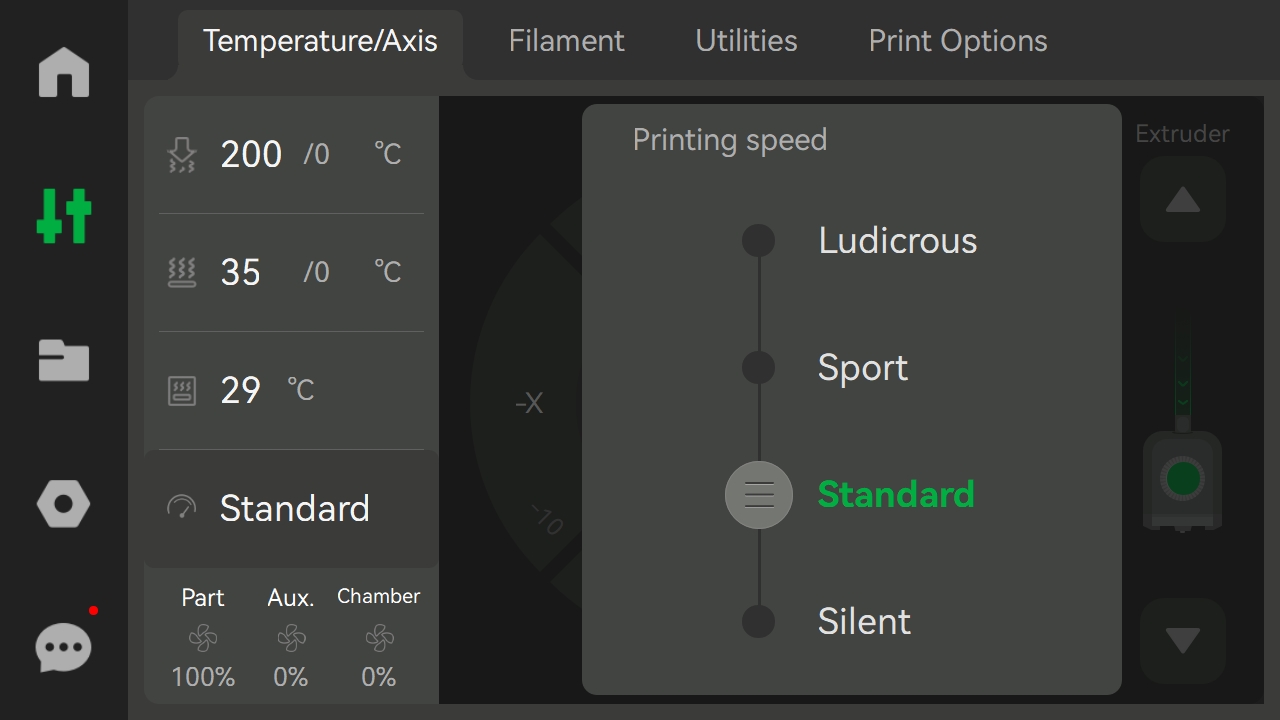
Printing Speed:Set the printing speed mode.
-
-
-
-
- Ludicrous:166% of normal print speed and acceleration
- Sport:124% of normal print speed and acceleration
- Standard:normal print speed and acceleration
- Silent:50% of normal print speed and acceleration
-
Please note that changing the print speed from the screen only increases the print speed and does not adjust the hotend temperatures to compensate. It is recommended to use lower layer heights when using higher print speeds adjusted from the screen, and to correctly adjust the print settings in order to avoid print failures.
-
-
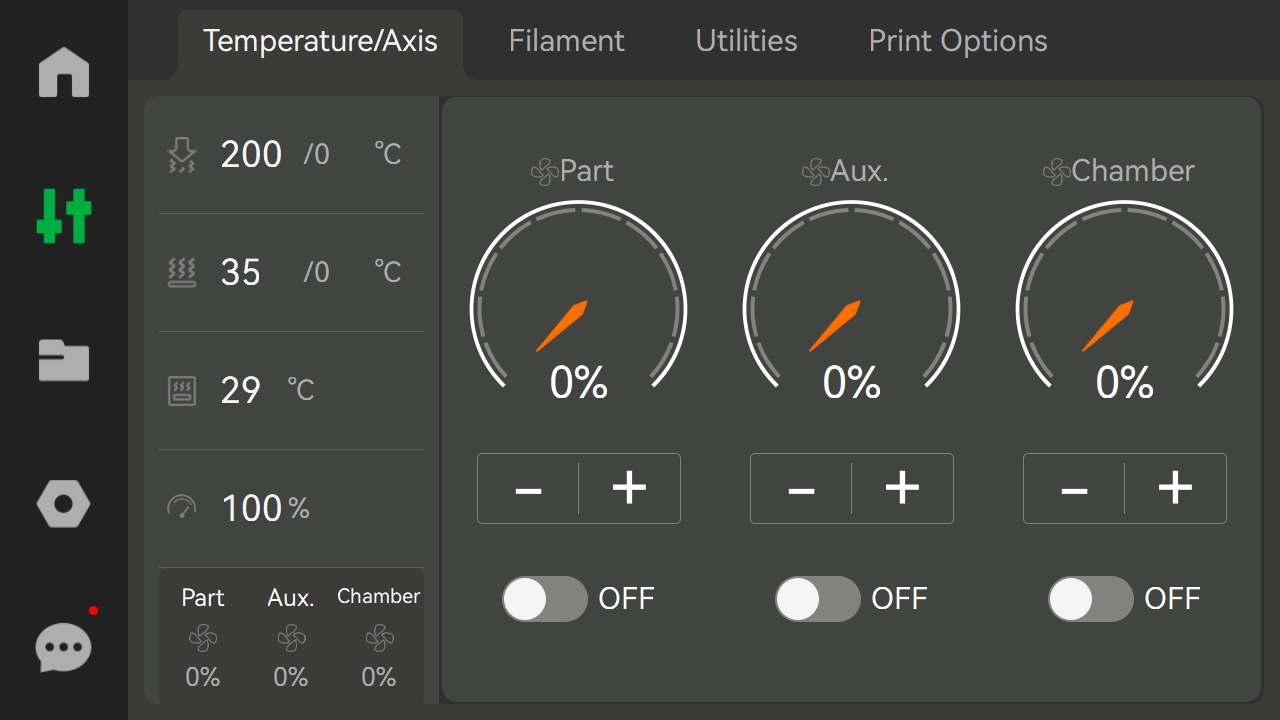
- Fan Settings: Turn on or off the part cooling fan, auxiliary part cooling fan and chamber temperature regulator fan, and set the speed.
-
-
-
-
XY-axis control dial: Click +1 or +10 to control the toolhead movement in the X-axis and Y-axis.
-
Print Plate Lift Control: Click the 1-frame or 10-frame move button to raise or lower the heatbed.
-
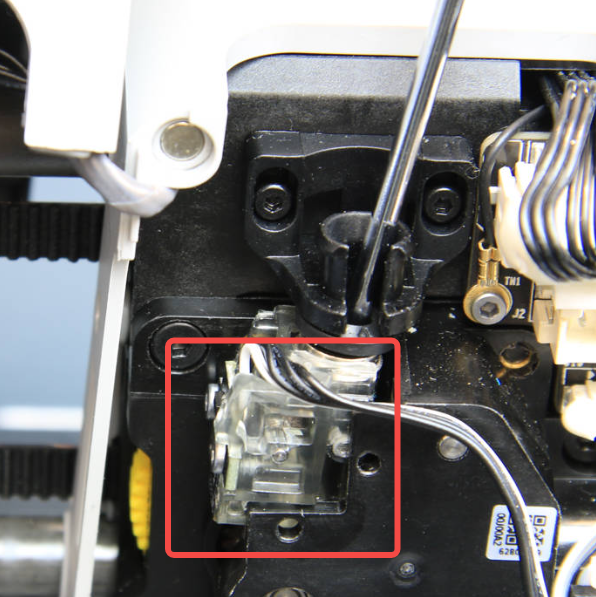
Extruder: Click the up and down buttons to manually extrude or eject 1 cm of filament. If the green light is on, the extruder filament sensor has detected the entry of filament.
-
-
Filament
-
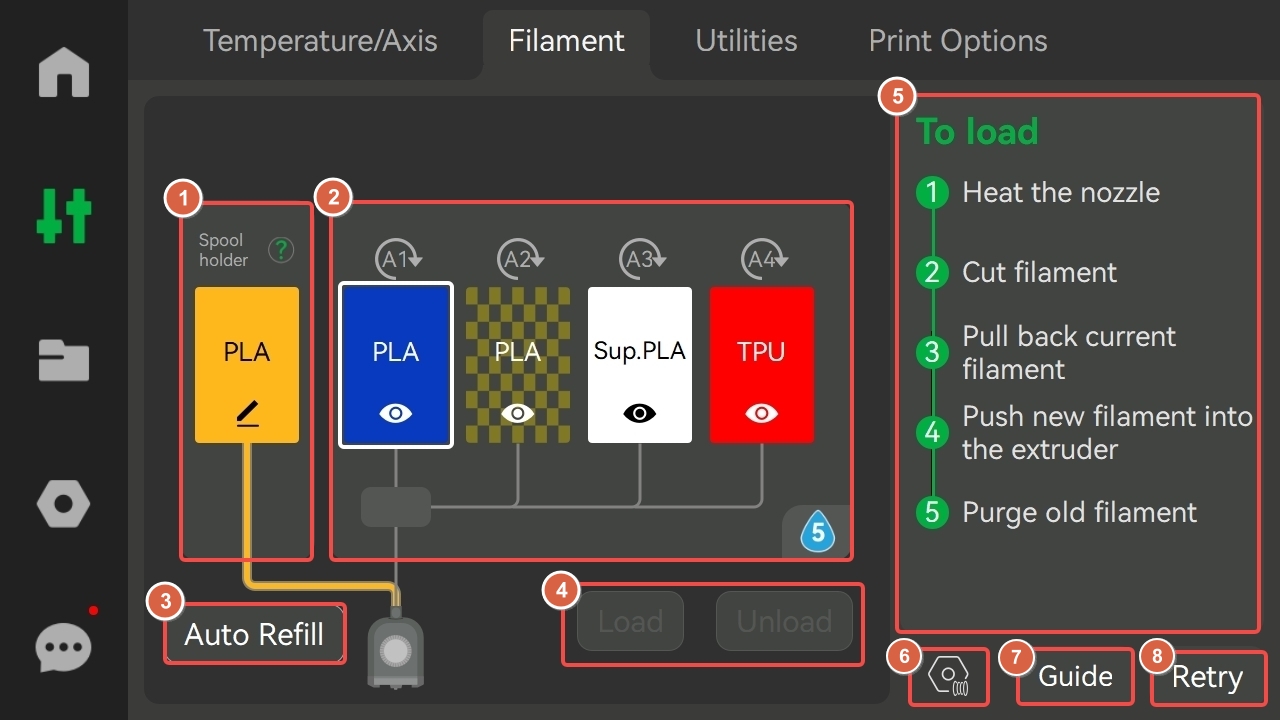
Spool Holder:If an spool holder is used, you can configure the filament color and type here. This information will always be displayed whether or not the spool holder have filaments.
-
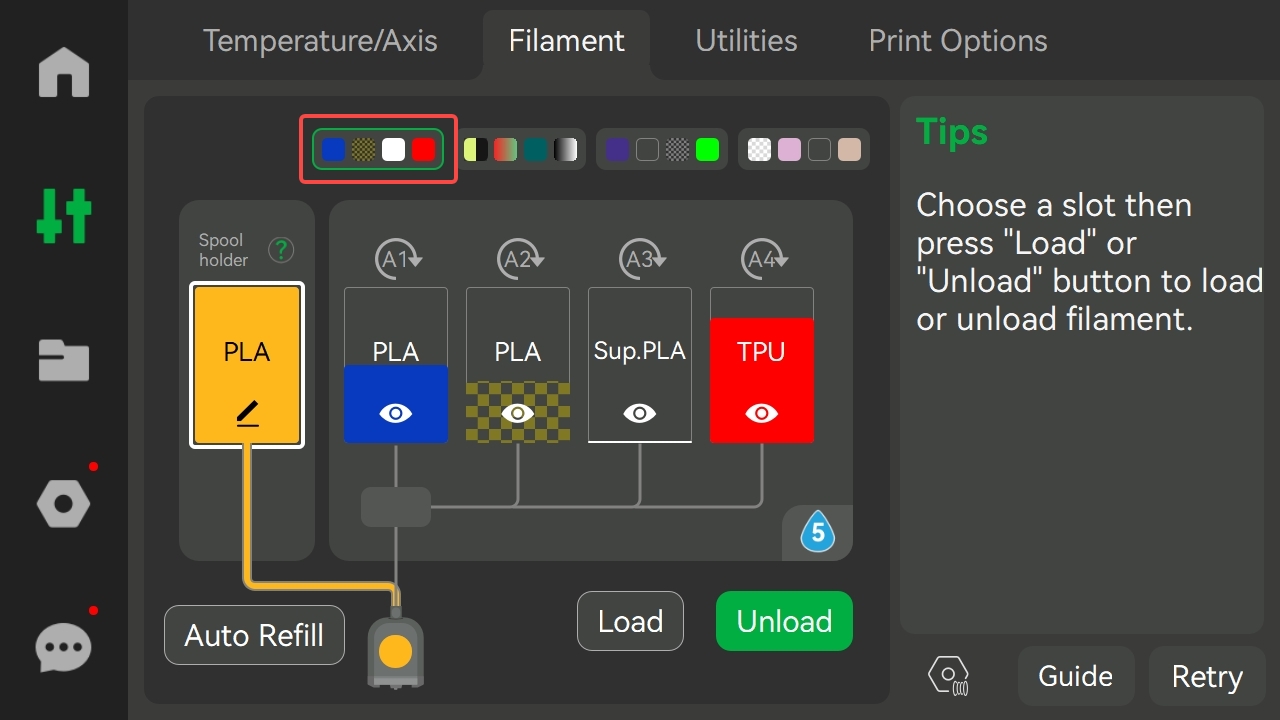
Spool:Each of these spools corresponds to one of the four spools in the AMS. When the printer is connected to four AMS, the filament color symbols for each AMS will be displayed at the top, and you can select and operate a specific AMS by clicking on the corresponding symbol.
-
Auto Refill: AMS will continue to another spool with the same properties of filament automatically when current filament runsout. Make sure that there are supplies in the spool with the same properties and that the corresponding spool information on AMS is the same. Please enable this feature in AMS Settings.
-
Load and Unload:Select a spool and click the Load or Unload button to perform the corresponding operation.
-
Currently performing task:A cursor indication shows whether an operation step for loading or unloading has been completed or not.
-
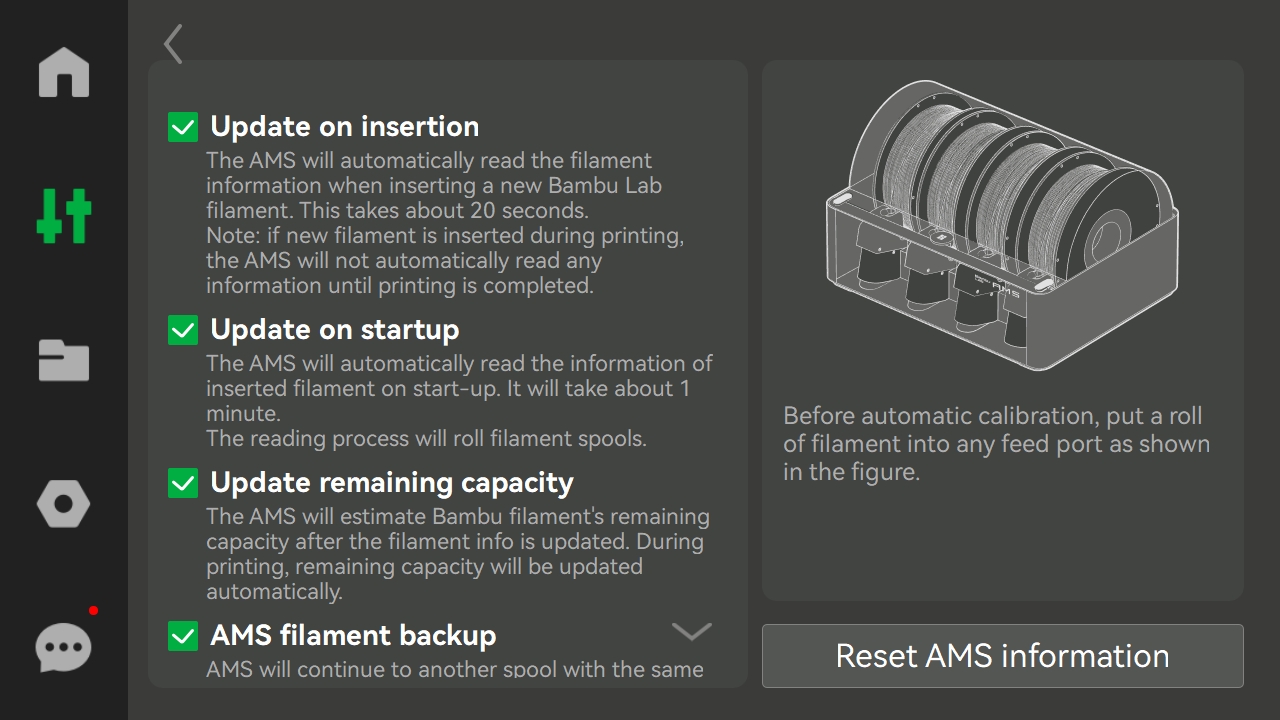
AMS Settings:
-
Update on insertion: The AMS will automatically read the filament information when inserting a new Bambu Lab filament.
-
Update on startup:The AMS will automatically read the information of inserted filament on start-up.
-
Update remaining capacity:Remainder estimation of filaments while RFID is being read. When this feature is turned on, the RFID will perform two readings, one for filaments information and one for residual quantity estimation. Please refer to this wiki for more information.
-
AMS filament backup:AMS will continue to another spool with the same properties of filament automatically when current filament runsout. Please refer to this wiki for more information.
-
Guide:Introduce the loading line, spool status indication and AMS control interface.
-
Retry:If a process fails, you can click this button to retry.
Utilities
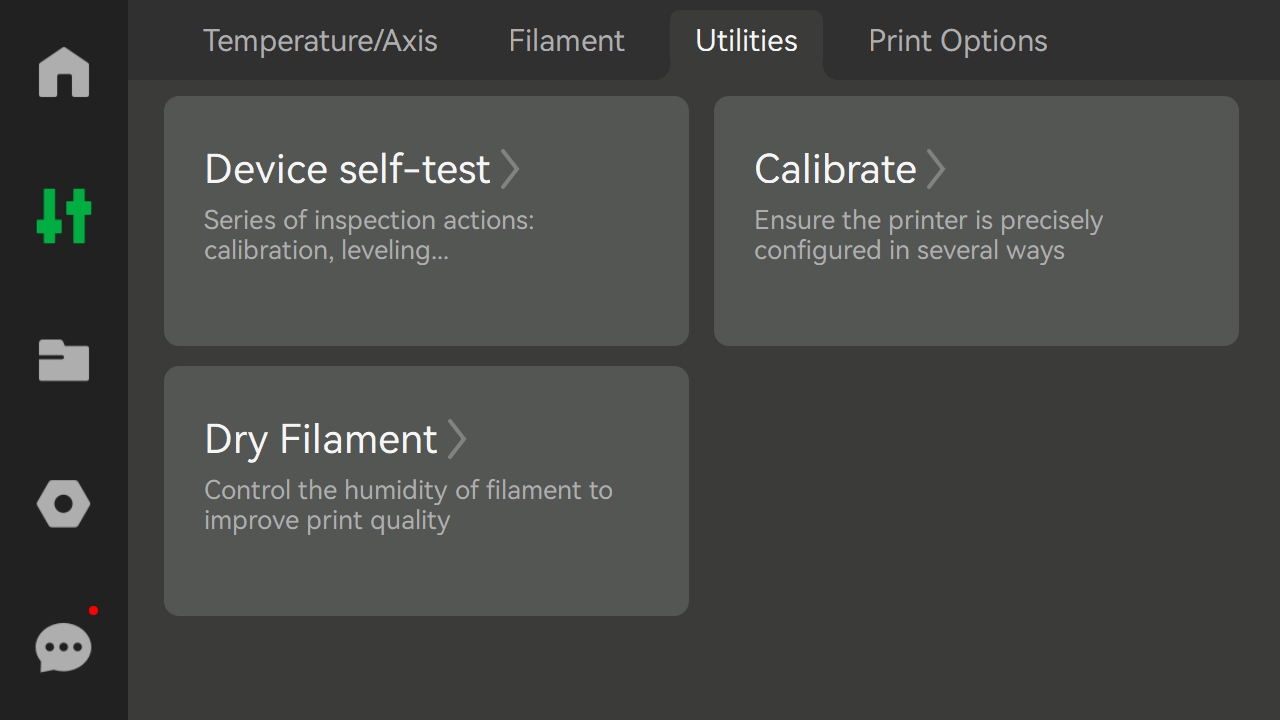
- Device self-test:If the printer encounters a malfunction, the problem can be detected by the device self-test.
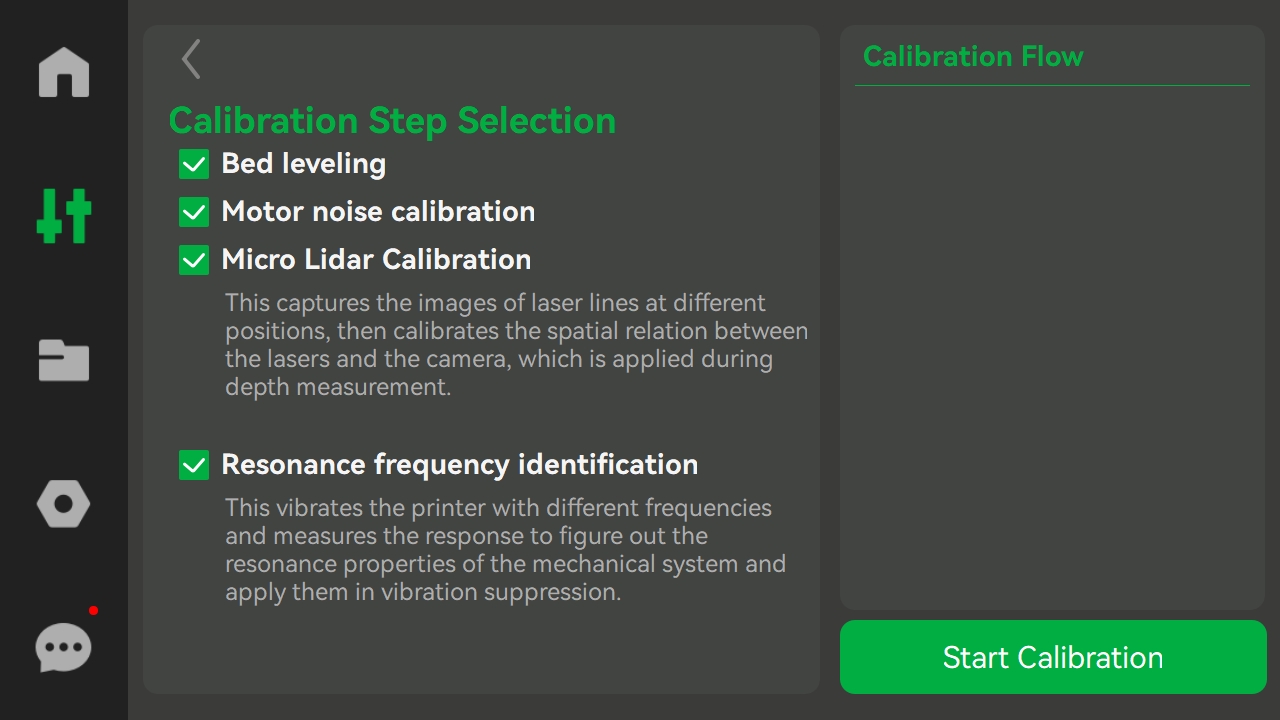
- Calibrate:Printer calibration through bed leveling, motor noise calibration, micro lidar calibration and resonance frequency identification.
-
Bed leveling:Adjust the distance between the nozzle and the print plate to ensure that the gap is consistent at each corner and to improve printing accuracy.
-
Motor noise calibration:Reduces motor noise during printing, especially when printing for long periods of time or at high speeds, and makes the print surface smoother.
-
Micro lidar calibration:Adjust the position of the laser and camera to ensure clear and accurate images of the laser line at different positions.
-
Resonance frequency identification:Vibration testing at different frequencies identifies the response of the printer, which reduces vibration and improves print stability.
- Dry Filament:Set the drying temperature and time duration to dry the filament. Please refer to this wiki for more information.
Print Options
-
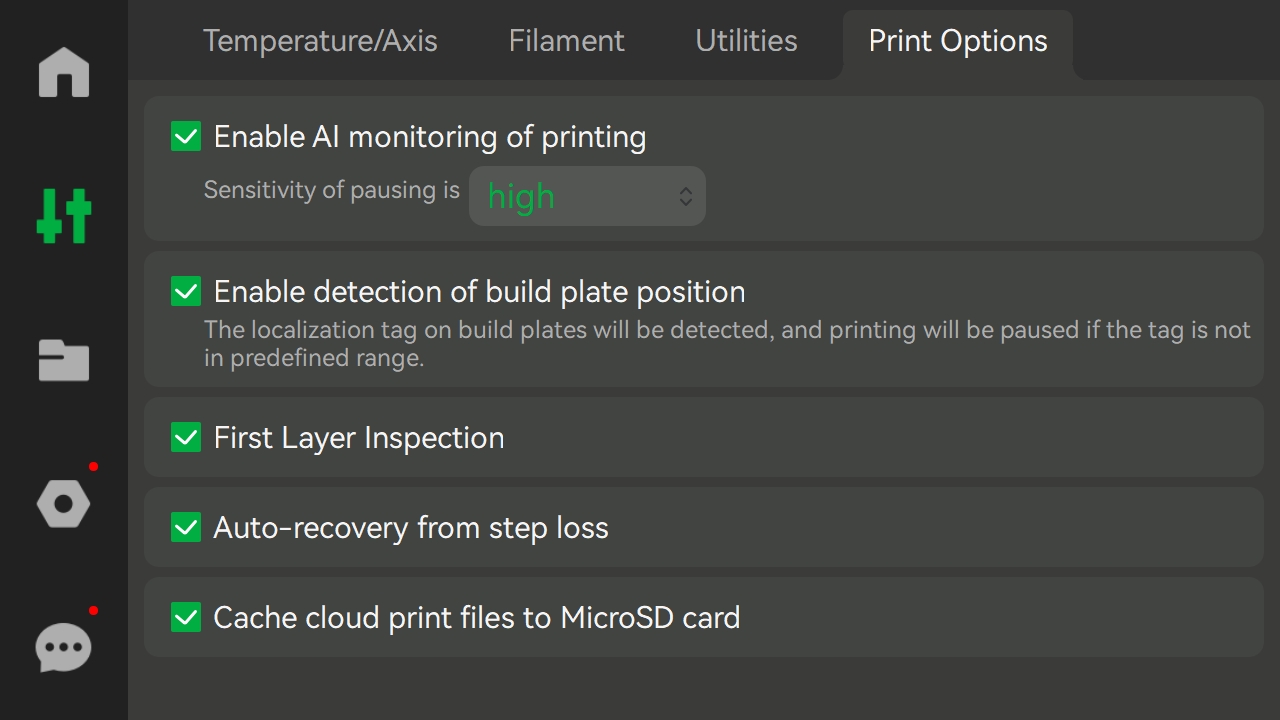
Enable Al monitoring of printing:Detect spaghetti and filament buildup in excess chute during printing.
-
Enable detection of build plate position:Detects print plate markings. If the markings are not within the predefined range or do not match the slice file, the printer stops printing. This prevents unplaced or misplaced print plates.
-
First Layer Inspection:Once the first layer has been printed, the system automatically detects the print quality and warns you if an abnormality is detected.
-
Auto-recovery from step loss:When the motor detects a position shift (lost step), the X-axis, Y-axis, and Z-axis are repositioned and returned to the pre-shift position to continue executing the unfinished G-code to ensure print quality.
-
Cache cloud print files to MicroSD card:This option is turned on by default. For prints initiated through the cloud, the print file is cached to a folder in the root directory of the SD card.
Please refer to this wiki for more information on print options.
Folders
Internal
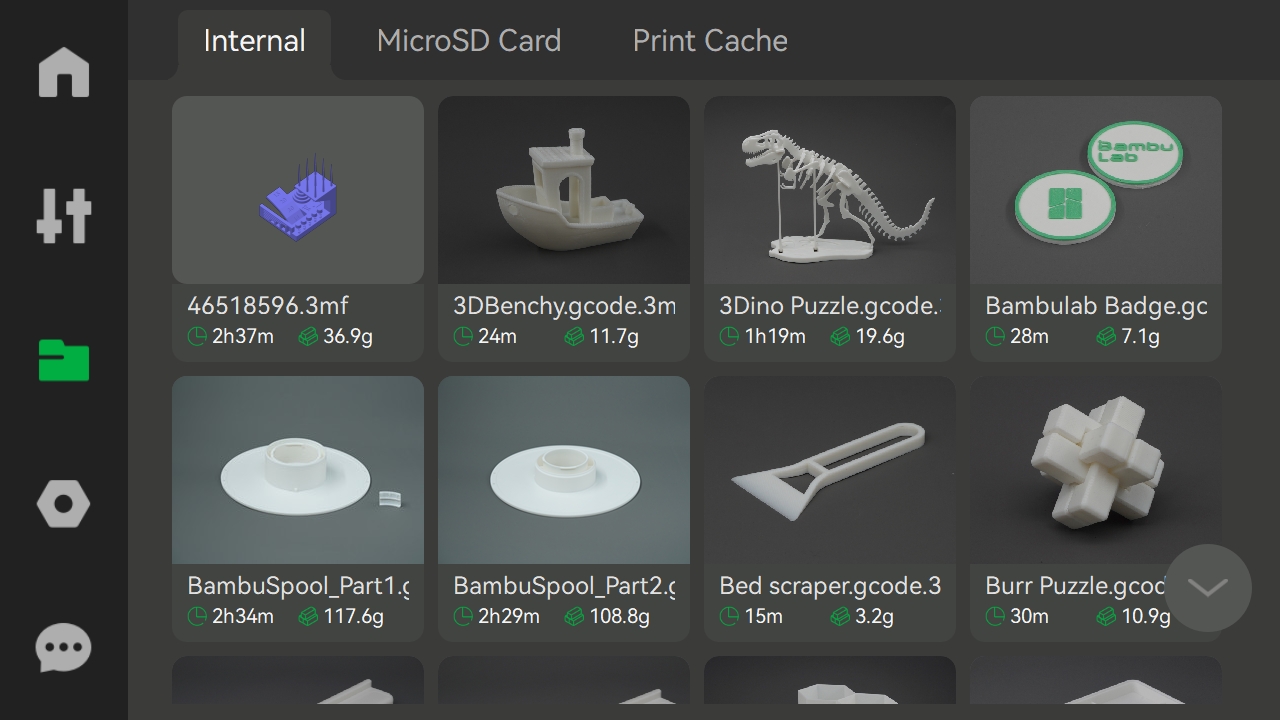
Save the printer's pre-stored model files and the most recent printout.
MicroSD Card
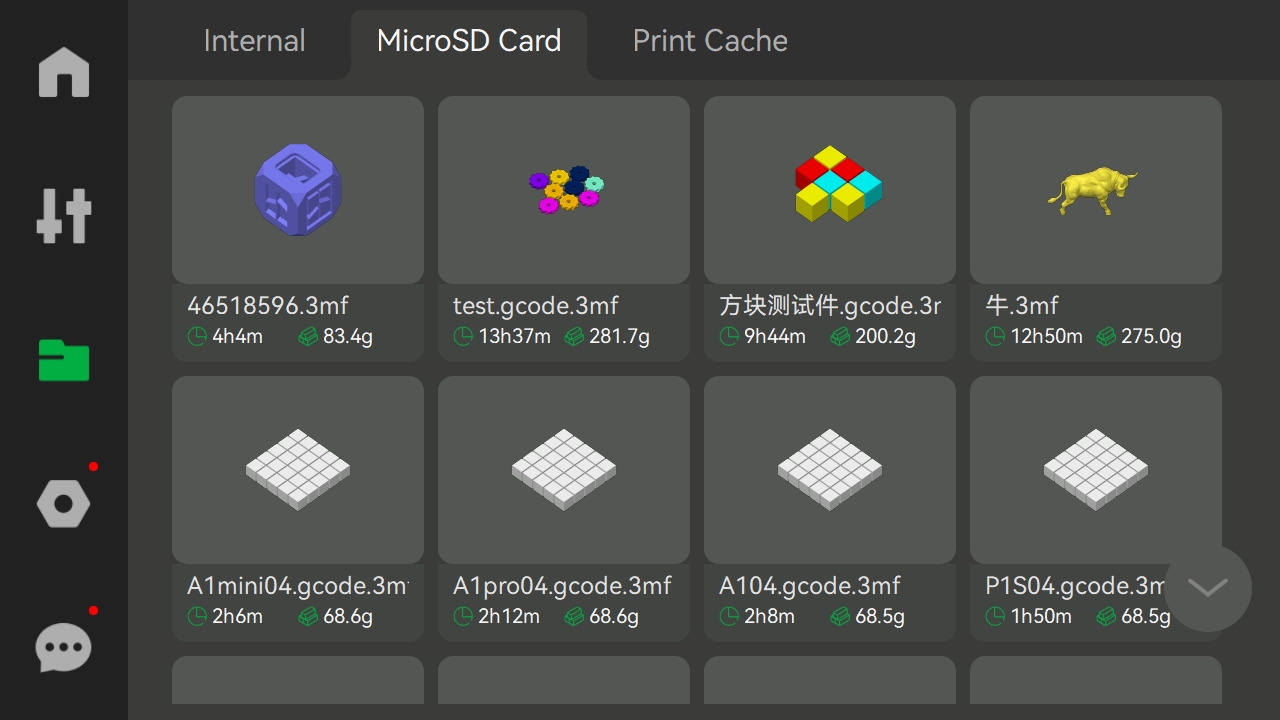
Store and manage model files and other data on the printer's SD card.
Print Cache
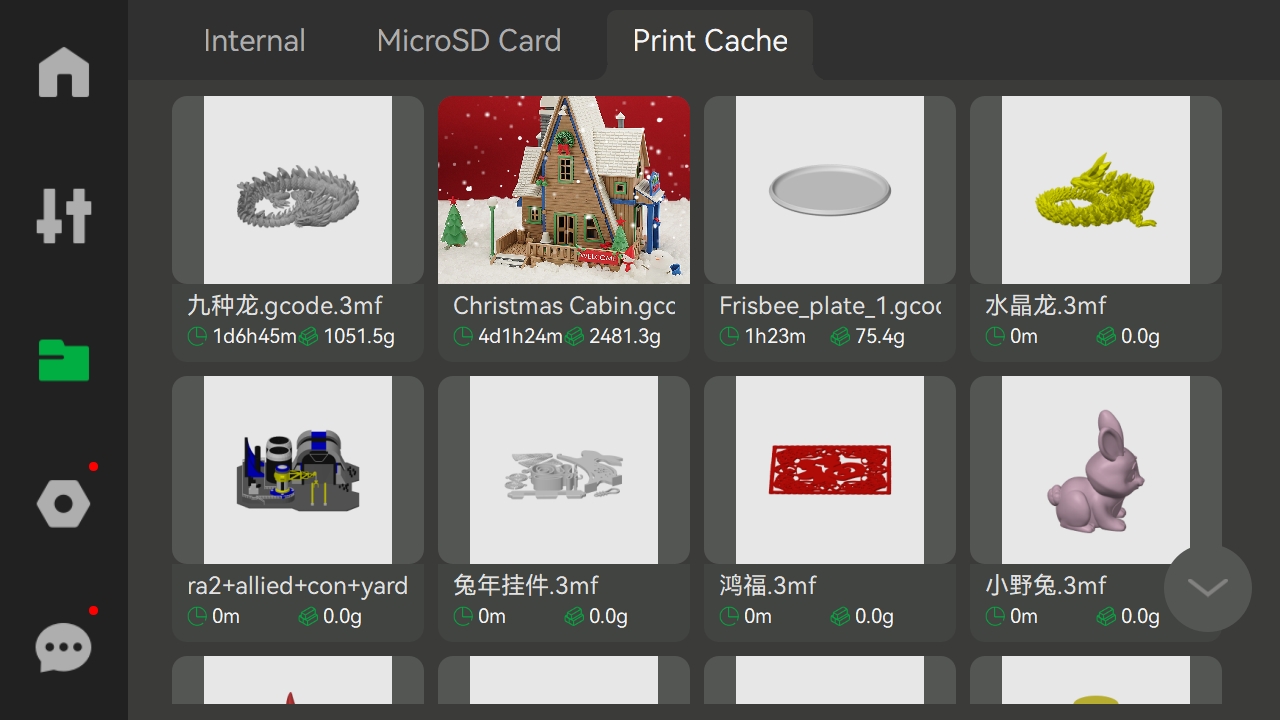
This feature is enabled by default in Print Options. If you select this option when printing through cloud, the 3mf will be stored in the cache folder of the MicroSD Card root directory.
Note: The print cache can store up to “8” 3mf files. If it exceeds, the oldest 3mf file cached will be deleted. When the remaining capacity of the MicroSD Card is less than 500MB, some old print cache 3mf files may be deleted to ensure that the current print 3mf file can be cached. If deleting all the old 3mf files still does not meet the capacity requirements, current print 3mf file will not be cached into the MicroSD Card, and an HMS prompt message will be reported at this time.
Settings
Account
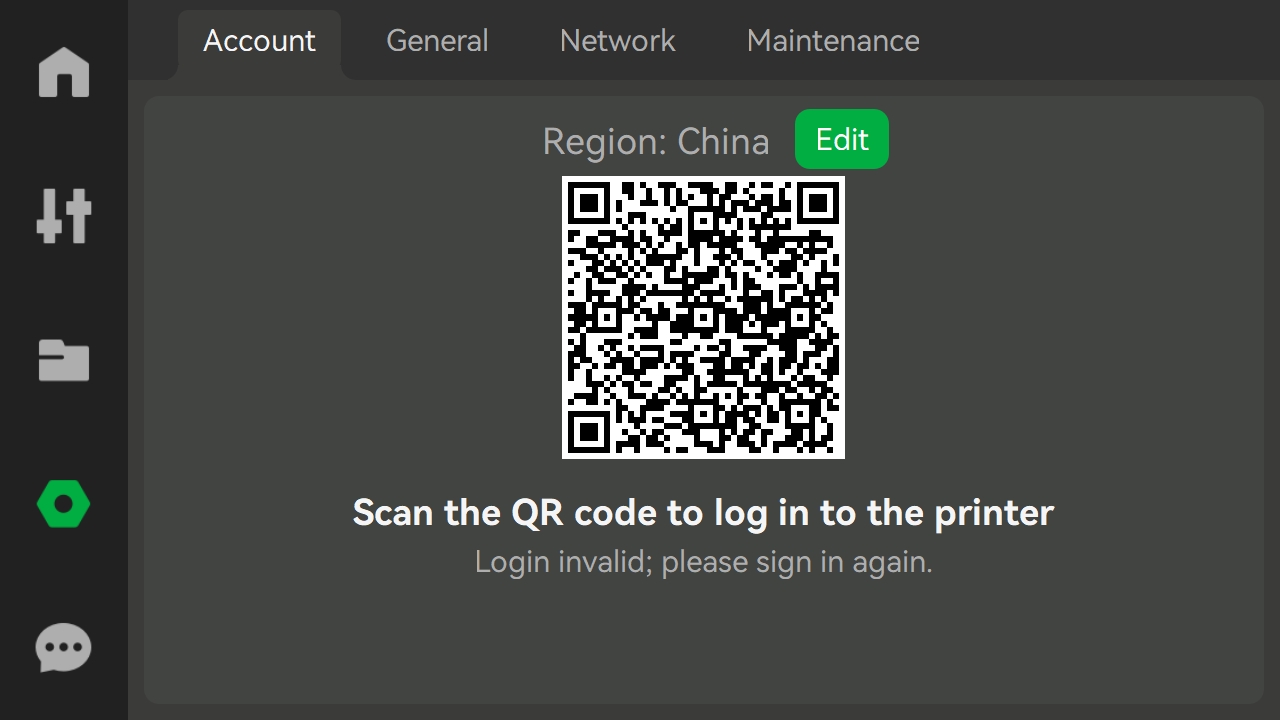
Open Bambu Handy and scan the code to access the account.
General
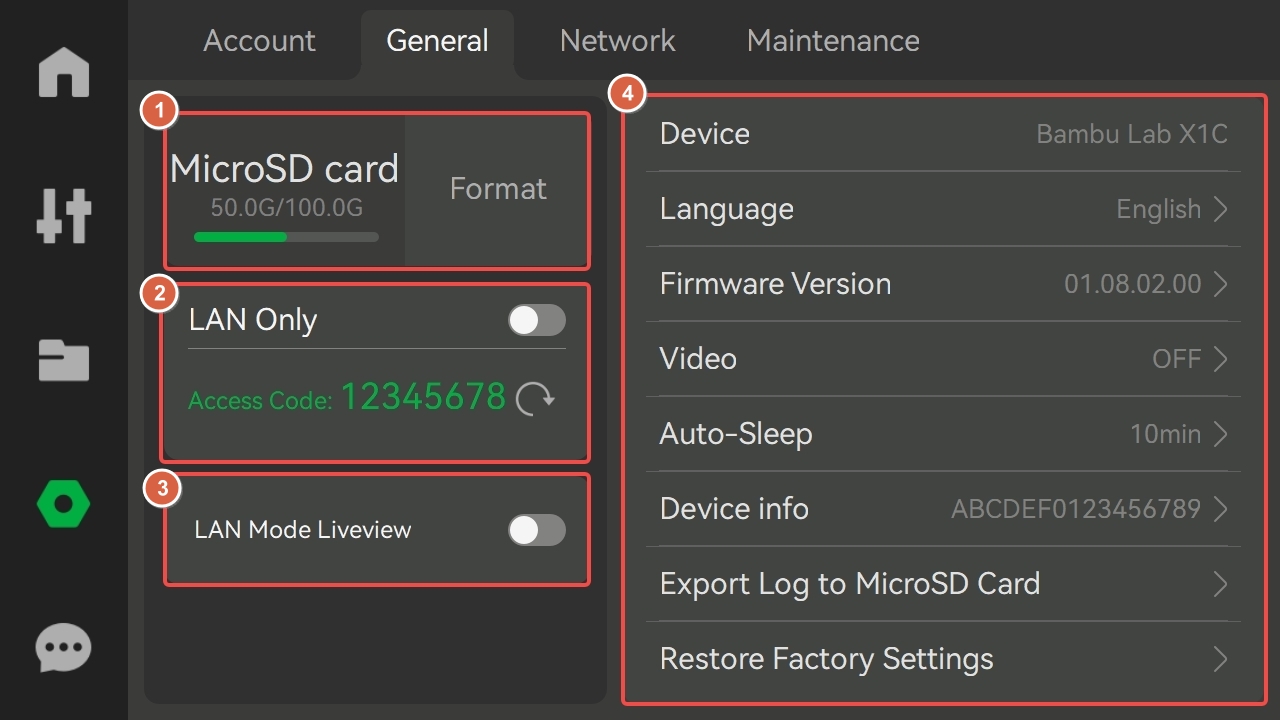
-
MicroSD Card: View the capacity of the printer's SD card and format the settings.
-
LAN only:When turned on, the printer can only be connected and accessed within the local network and cannot be accessed or controlled remotely over the Internet. Please refer to this wiki for more information.
-
LAN Mode Liveview:If multiple devices are connected via the same LAN, liveview or data sharing is possible.
-
Setting menu:
-
Device: View the printer device name.
-
Language: Select the language in which the printer screen is displayed.
-
Firmware Version: View the current version of the device.
-
Video: Set the video resolution. Higher resolution requires more storage space.
-
Auto-sleep: Select the length of time the printer will automatically sleep.
-
Device Info: View the serial number of the printer and AMS and the length of time the device has been in use.
-
Export Log to MicroSD Card:Export all Logs, key photos from camera and G-code.
-
Restore Factory Settings:Reset the printer to the factory settings. Once reset, the settings cannot be restored.
Network
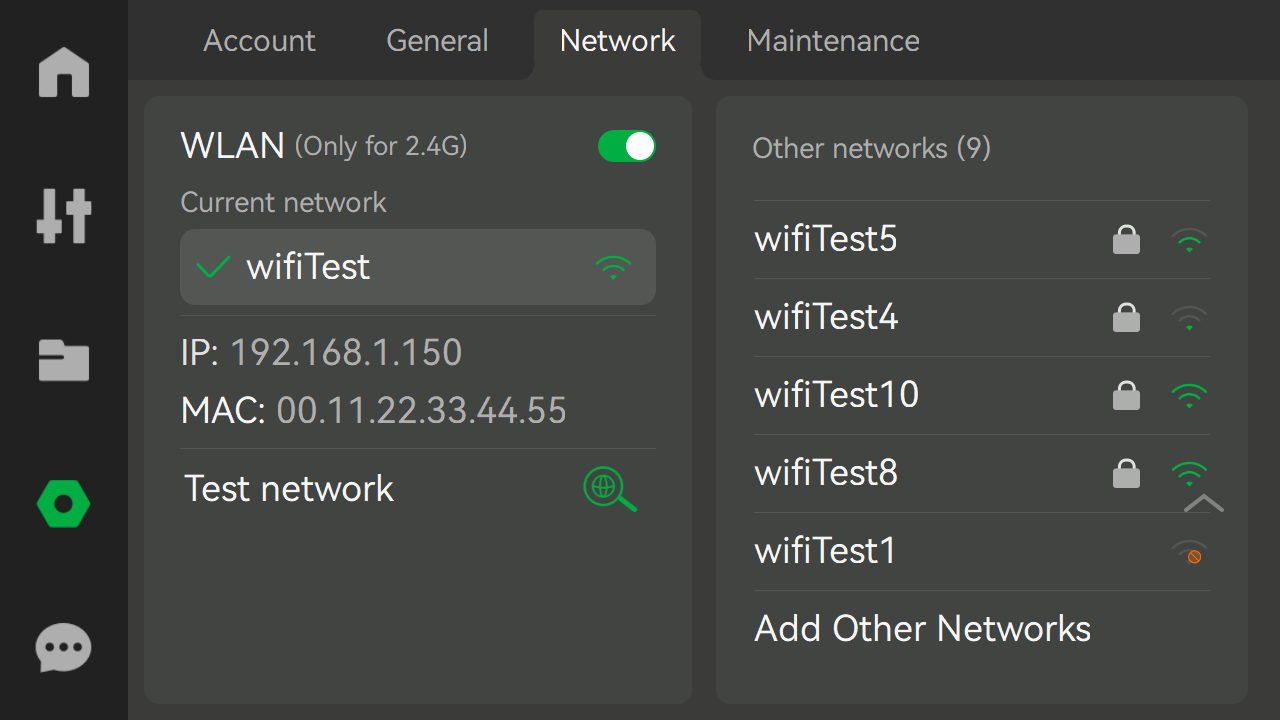
Set up the WLAN, view the current network, test network, or view and add other networks. Please refer to this wiki for more information.
Maintenance
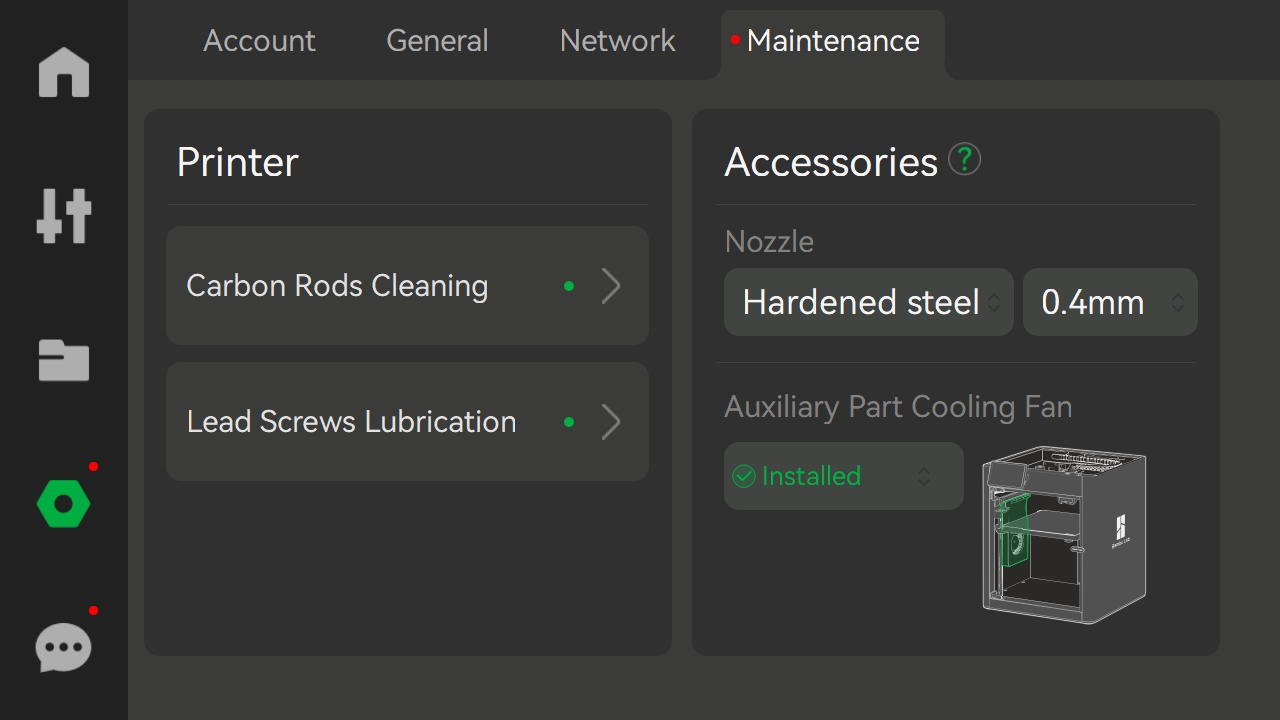
- Printer:View the operating instructions related to Carbon Rods Cleaning and Lead Screws Lubrication.
Note: If the need for maintenance is detected, the maintenance item will be prompted with a small green dot.
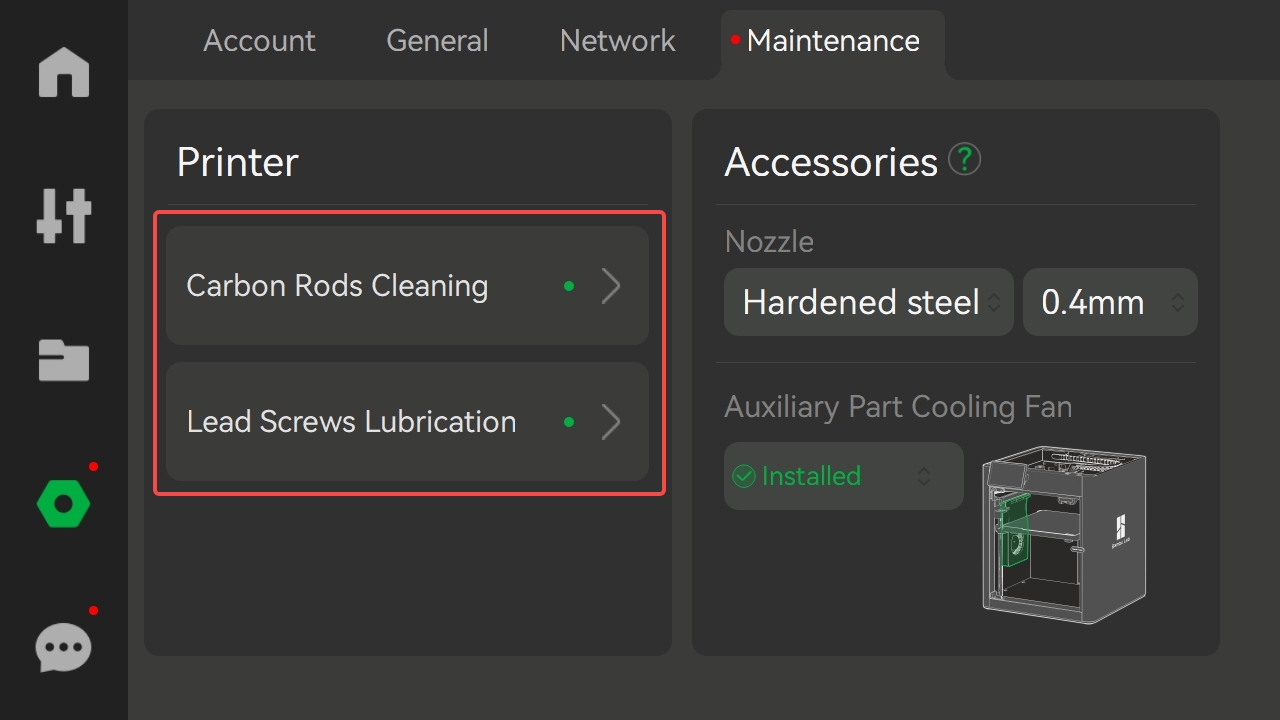
- Accessories:If the accessories have been replaced, reset the nozzle and auxiliary part cooling fan to ensure print quality.
¶HMS Messages
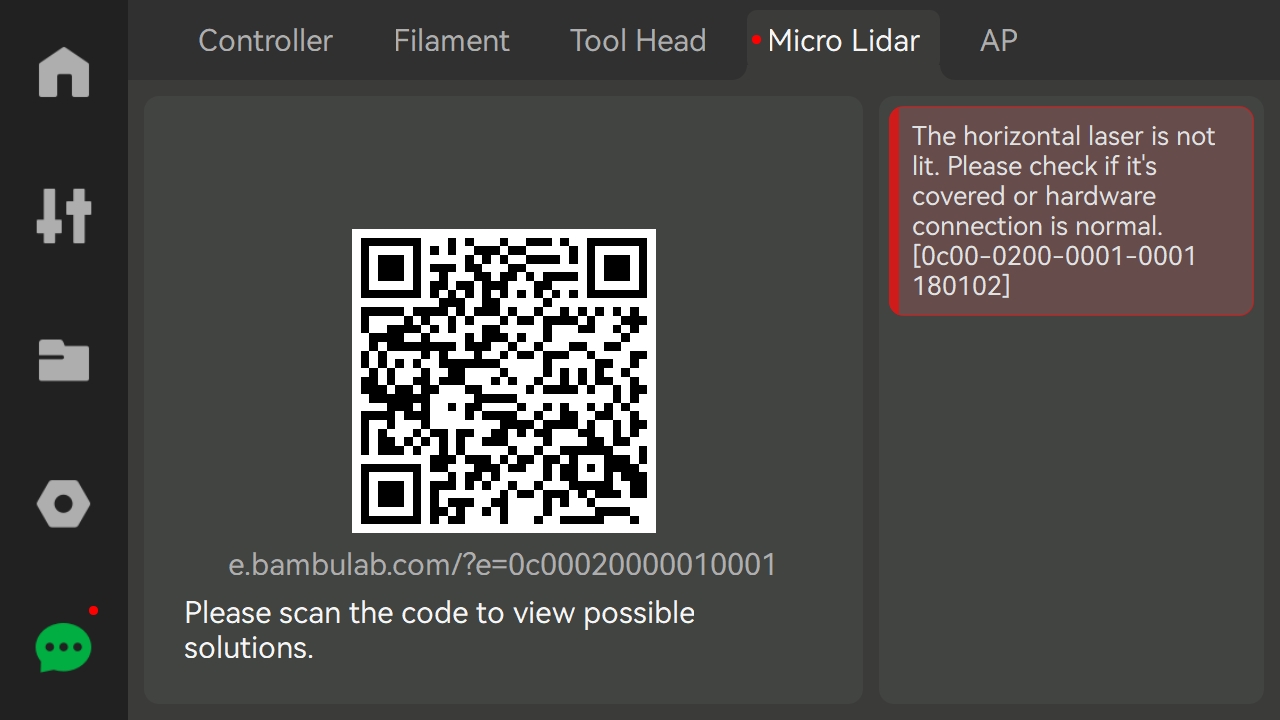
When there is a malfunction in the printer, you can use the Bambu Handy app to scan the QR code to see the solution to that fault.
For more information on HMS, please refer to HMS home page.